
Getting Started on Learn
Automatic translation. View original
Start by publishing in-person, online, or recorded classes so that your students find the content once they register on the platform
To start setting up your publications, log in to Learn as an instructor, logging in through Padma.
Publish your activities
In-person, live, and hybrid classes in your weekly schedule.
They can be one-time broadcasts or held in a recurring way.
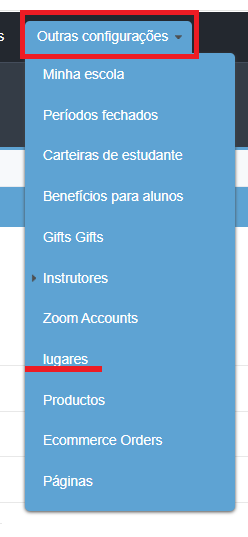
👉 To create in-person classes, we recommend that you first enter in the instructor's advanced panel, the location addresses: whether it is your school, a park, or another place.
Then, in the “Publications” tab, you will see the different options to open the specific creation form for your in-person class.
These classes can be hybrid with just one click.
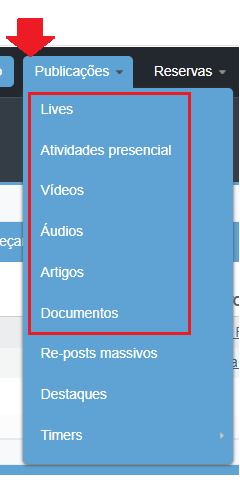
👉 LIVES are live online publications. You can easily assign an instructor for the
Class substitutions via the Instructor app 👉 AUDIOS. In the case of podcasts, it’s possible to include Spotify links, but for own audios, we recommend specific platforms where you can upload the file, such as
SoundCloud Recommendations.
For recorded class videos:
We recommend Vimeo For live classes we recommend Zoom, see how to add a Zoom account to your Learn..
. Please note that 'vea cómo' in the source text seems incomplete or a language mix; however, it refers to adding a Zoom account to Learn. Add Zoom account to your Learn.
Booking / Reservations module
This tool is exclusive to Learn PREMIUM. Not available in the free version.
You can set whether activities require booking and whether that booking needs to be confirmed or not.
Some of its multiple uses:
- Allows you to know in advance how many people will participate in the activity
- Control access according to the plan
- Limit the number of available spots in the activity
- Offer a waiting list with priority order to release new spots
Read more about this subject and its settings Bookings - Reservations
Visibility of publications
You can choose with whom you want to share your publications:
selecting grade, users from your school, from other specific schools, from the entire network, only those participating in a course, etc.
👉 Here you will find all available options: Visibility of publications
To expand the content you offer your students, you can share classes and publications from other schools
Share content from other schools:
👉 You can share manually, curating the content that will appear to them, or share automatically and in bulk:
How to share content from other schools
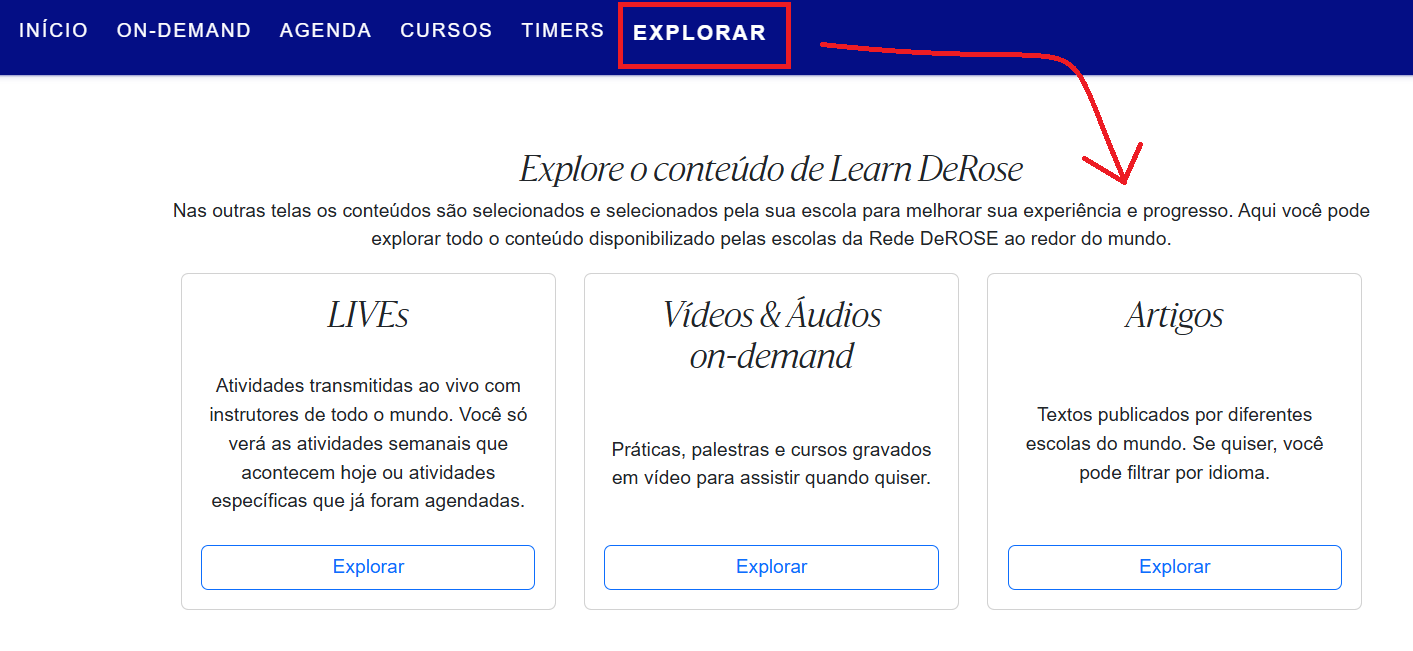
👉 You can enable the Explore, from your school's settings or access presets, so your users can access content from all DeROSE Network schools (that use Learn)
User registration
After having content on your platform, you can share the link for your users to register.
It is important that each user creates their own registration, as they need to fill in personal data and create a password.
Without a registration, students will not be able to navigate Learn, as it will not be possible to associate them with a school, a degree, or a specific subscription plan.
There are different ways to register students in Learn:
- Through a "JOIN", which you can find in the Advanced Panel of your school: https://learn.derose.app/a/SUAESCOLA/join
- Through a subscription link, linked to the payment of the student's monthly fee or plan: Charges via Learn
- Through a Learn DeROSE Coupon for free access for the student
Monitoring my users
Monitoring student participation
Notification of check-ins and reservations made by your students - I received emails with this information
Check-ins (Enhanced attendance)
Here you will find several posts that may be useful to share with your users