Landing for prospect booking
Automatic translation. View original
With this public link prospects can request a class without the need to create a user on the platform.
How a guest books
1. Choose day and time
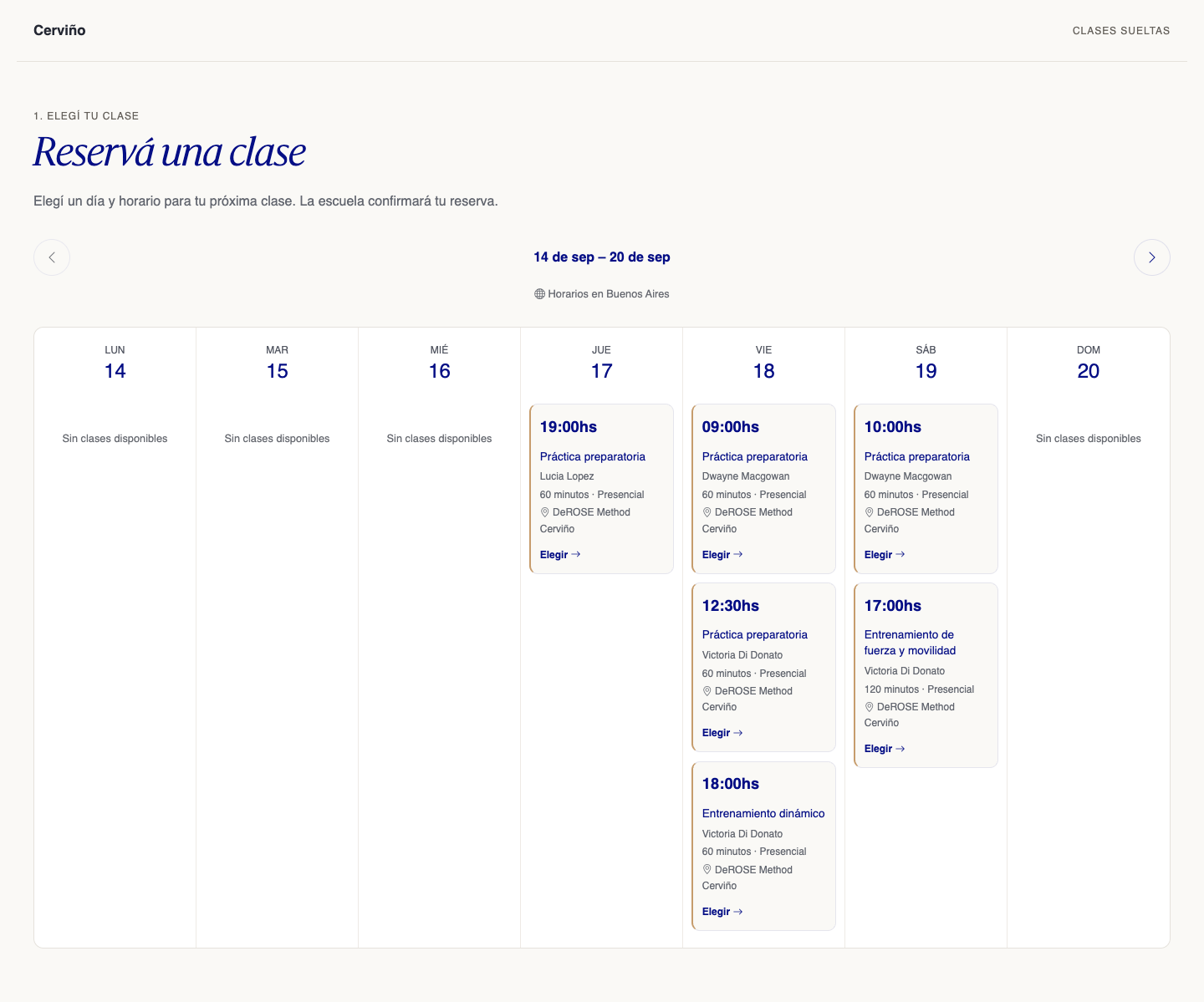
The landing page shows the school's available classes, with schedule, instructor, duration, and modality. The cards and modality options show the corresponding price or No cost. The arrows allow you to scroll through the available weeks. The schedules are shown in the visitor's detected time zone or, if not detected, in the school's; the zone used appears on screen.
On a computer, the full week is displayed in columns, including days without available classes.
Weekly calendar
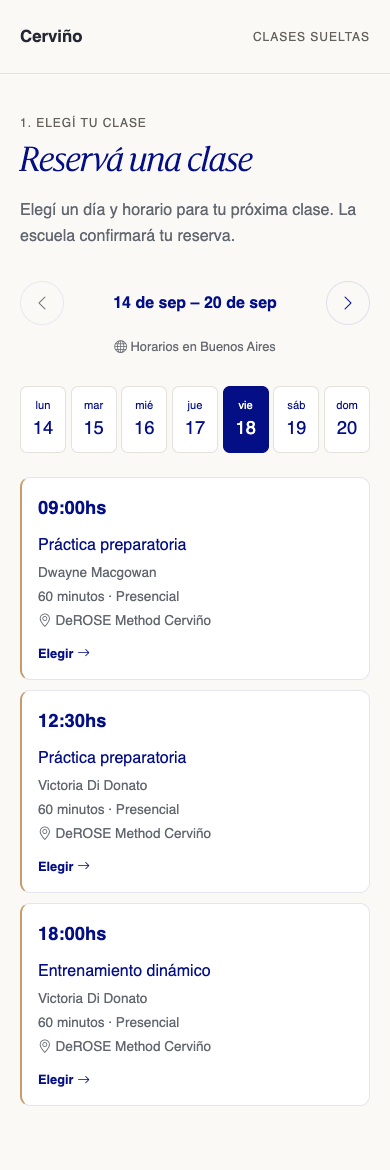
On a mobile phone, tap a day to see its classes. Choose a time to continue.
Day and class selector on mobile
2. Choose modality, when applicable
If a hybrid class has its online and in-person options available at the same time, it appears only once in the calendar. When chosen, the guest selects the modality before completing their data. Only enabled and available modalities are offered; if the schedules differ, they appear separately.
3. Complete the data and request the booking
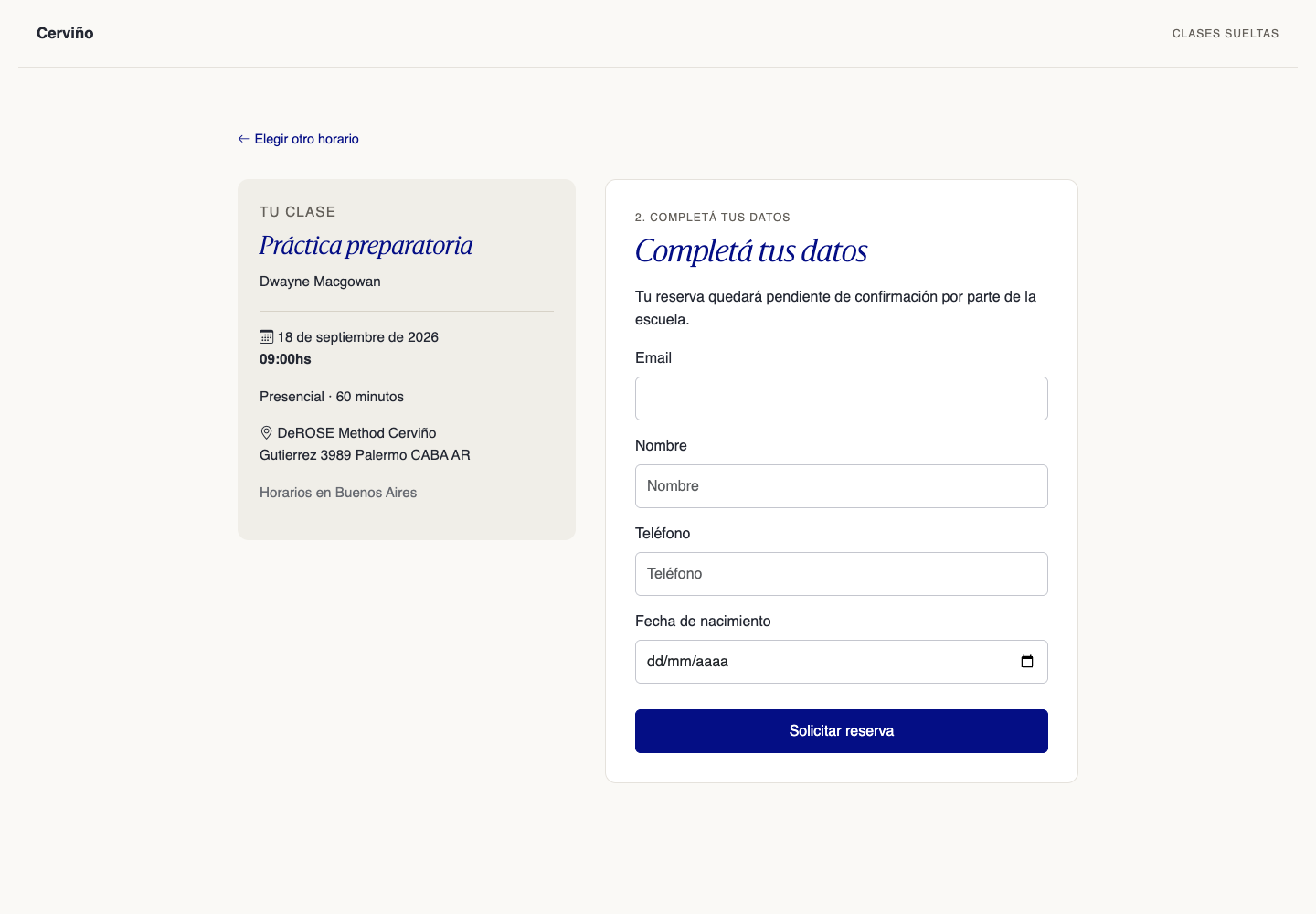
The form shows a summary of the chosen class and its full description, when available. The email is mandatory and additional data configured by the school is requested. The capture shows an example with name, phone, and date of birth; fields may vary.
Class summary and booking form
If the school requires acceptance of its terms and conditions, the guest must check the box before submitting the form. The link to the document opens in another tab.
The guest can go back with Choose another time. If the class does not require payment, submit the form with Request booking. If payment is required, see the price before completing your data and continue with Proceed to payment. The system rechecks availability before saving the request.
4. Confirm the booking
Without payment: the request remains pending manual confirmation by the school. The booking page shows its current status: pending, confirmed, or canceled, along with instructions configured by the school when applicable.
With payment: the spot is held for 15 minutes while the guest pays via Mercado Pago or Stripe, according to the school's configuration. There is no need to create a user or log in to Learn. The reservation is automatically confirmed when Learn verifies the payment approval; returning from the payment page alone does not confirm the reservation.
The guest can keep the private link of their reservation to check its status and, while the deadline remains valid, use Continue or retry payment. They can also use Check status. The confirmation email includes the link to recheck the reservation without registering.
If the deadline expires, the spot is released. If you have already paid, wait for confirmation before booking again. An approved payment after expiration can confirm the reservation if the class is still valid and has space; otherwise, it remains for school review.
The landing does not include waitlist registration.
Check the reservation, join the class, and cancel
The private link gathers the reservation status, the school's instructions, and available actions. It is used for both in-person and online classes, with or without payment.
For an online trial class, the guest can join the Live from that page without logging in. The reservation must be confirmed, payment approved when applicable, and within the allowed timeframe to enter. The class must still be available and meet attendance conditions.
Online reservations not classified as trial show Open in Learn. That access requires the usual Learn session and permissions. If the holder of an active reservation is already logged in and has no payment pending approval, the link takes them directly to the class in Learn.
The guest can also cancel from their private page, within the class deadlines and conditions. If a late cancellation applies, the page requests confirmation. The canceled reservation remains visible but no longer allows access to the Live. Refunds are requested from the school.
Payment statuses
- Pending payment: approval is still awaited. The screen shows until what time the spot is reserved.
- Payment approved: Learn has received the payment. Also check the reservation status, which may change if the school cancels it afterward.
- Payment deadline expired: the spot was released. If you have already paid, wait for confirmation before booking again.
- Payment received: requires review: the payment was received, but the reservation could not be confirmed. Contact the school to coordinate a solution or refund.
👉 Without payment, the school confirms manually. With payment, verified approval confirms the reservation unless review is required.
👉 This feature allows making reservations in classes that do not have the reservation requirement to participate.
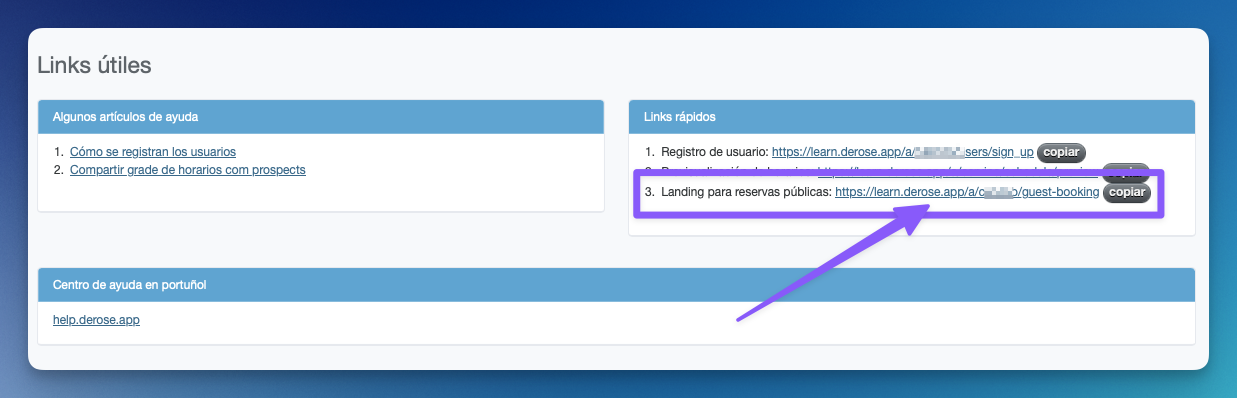
When guest reservations are enabled, find your school's link on the advanced panel homepage, in the useful links section. The format is https://learn.derose.app/a/TU_ESCUELA/guest-booking; replace TU_ESCUELA with your school's identifier.
The following historical screenshot serves as a reference to locate the link:
Settings
In the advanced panel (/admin), edit your school's settings and look for the section Guest Reservations. There you can enable or disable guest reservations, choose whether to show a button on the school's page, and configure the access template, grade, and reservation deadlines.
Enable reservations and show the button
In the selector Guest Reservations, choose one of these three options and save the changes:
The default option is Enabled, without a button, both for existing and new schools.
The button appears before the list of links of https://learn.derose.app/a/TU_ESCUELA, also for those who have already logged in. Its text adapts to the language of the page.
What happens when disabling
New bookings from the landing page, direct links to classes, and the embedded landing on another website are blocked. It is also not possible to submit a booking from a form opened before disabling the feature.
Previous bookings are kept: the guest can continue checking their status from their booking link and the school can continue managing them. Student bookings and those created by the school do not change.
To start receiving guest bookings again, choose any of the two enabled options and save.
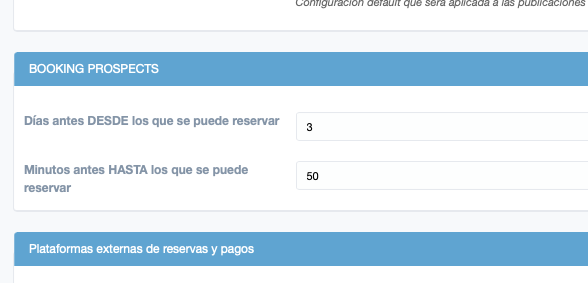
The following screenshot corresponds to the previous configuration; the new access controls are described below:
Configure paid bookings
- In the advanced panel, create or review a unique payment link of the school from the payment link administration.
- Use an amount greater than zero and a gateway Mercado Pago or Stripe of the same school, with an accepted currency. The link must be active, with no associated accesses, no subscription, and no e-commerce order.
- In the school settings, within Guest bookings, choose that link in Payment to confirm the booking and save.
- Open the landing page to check the price and currency before sharing it.
The amount, currency, and gateway chosen are the school's default configuration. Each class can use that configuration, be free, or have a specific payment link. The access template continues to define which classes can be booked; the payment link charges for the booking and does not grant a plan or subscription.
To leave the default configuration without charge and with manual confirmation, choose No payment. Classes with a specific payment link keep their charge. Changing the price or the link affects new bookings; those already made keep their original conditions and their consultation link. Disabling guest bookings or removing the charge also does not delete those links.
If the link does not appear in the selector, check that it belongs to the school, is not archived, and meets the above conditions.
Set a price per class
- In the advanced panel, edit the class and look for Guest booking charges.
- In Price for guests, choose an option:
- Use school settings: applies the default charge. If the school has No payment, requires manual confirmation.
- Free of charge: does not charge for that class and requires manual confirmation, even if the school has a default charge.
- Specific payment link: uses its own charge for that class, even if the school does not have a default charge.
- If you chose a specific link, select Class payment link.
- Save the changes and check the price on the landing page.
The specific link must meet the same requirements as the school's. The class settings apply to all its dates. Reservations already created keep their original conditions.
Configure acceptance of terms and conditions
- In the advanced panel, edit the school and look for Guest reservations.
- Complete Link to terms and conditions with the full URL of the document.
- Activate Require acceptance of terms and conditions.
- Save the changes and check that the checkbox appears on the form.
The link must be a valid HTTP or HTTPS URL. When acceptance is mandatory, you cannot request a reservation without checking the box. If you disable the requirement, the checkbox is hidden and the configured link is preserved.
Manage payments, cancellations, and refunds
In the reservation detail of the advanced panel you can check the payment status, amount, gateway, and charge references. While a reservation is waiting for payment, it cannot be manually confirmed or attendance registered; notifications of creation of that reservation are sent upon payment approval.
When a payment arrives late and the reservation cannot be confirmed—for example, because there is no longer availability, the schedule changed, or the class was canceled—the school receives a notice to review the charge. Duplicate charges also generate a notice for review. Use the charge references to reconcile with the gateway and resolve the reservation or the refund.
The guest can cancel from their private page when the deadlines and class conditions permit it. If they cannot do so, they must contact the school.
Canceling a reservation does not automatically refund the payment. Refunds are managed manually with the school; the guest must contact them to request them.
If a reservation or its class is deleted, the payment history is preserved with the original guest data, the class, the schedule, and the payment references. An approved payment after that deletion requires school review.
Set which classes appear
- Choose an access template from the same school in the guest reservations settings.
- Set the grade that will be used to determine which classes a guest can book.
- Check in that template the modalities, included classes, blocked classes, and enabled courses.
- Save and open the public link to check the result.
The landing uses this saved configuration for all visitors. Changing preview or template parameters in the URL, or opening it with a student session, does not change guest permissions. The booking link shown within the presets leads to the same school landing.
Public visibility can also enable a class, always subject to applicable restrictions. Therefore, it's advisable to review both the template and the visibility of the classes. Having a direct public link does not by itself guarantee that a class can be booked.
If there is no configuration yet, a template is initialized with enabled in-person access, disabled online and on-demand, and grade 0. Review these values before sharing the link.
The schedule preview remains documented in Share schedule grid with prospects; to share the new booking experience use the dedicated link from this guide.
Availability and anticipation
Besides permissions, a class must be published, have spots available, and be within the booking deadline. Canceled classes, hidden for that date, full, or out of the deadline are not offered. Unlisted classes do not appear in the general calendar.
You can define how many days before booking is enabled and up to how many minutes before start time it is accepted. If these values are not set for guests, the class values are used.
If no schedules appear, check the selected week, permissions, grade, spots, and booking deadlines. If the configuration is unavailable, the landing asks the visitor to contact the school.
If you want to ask for additional data from prospects on the booking form write to our support team: Contact
Link for booking a specific class
With guest bookings enabled, you can find the booking link for a class in the BOOKINGS tab of the advanced panel, when available. You can also filter the landing by adding ?post_id=ID_DE_LA_CLASE to your school's link.
The direct link respects the same permissions and availability controls as the general landing. Enabling the public link for the class does not replace the access configuration for guests. An unlisted class can only be opened by direct link if it is authorized for guests and meets availability requirements.
The following video is a reference of the previous interface to locate the link; the new path is shown in the screenshots above.
Embed in your own site
You can embed this landing page within your own website with this code:
<iframe src="https://learn.derose.app/a/TU_ESCUELA/guest-booking?embedded=true" title="Reservá una clase"></iframe>
It is important to add the parameter embedded=true
When submitting the form, the flow continues in the main window, outside the iframe, both for paid and unpaid reservations. If the class requires payment, the Mercado Pago or Stripe checkout opens. Without payment, the private reservation page opens. The time to hold the spot during payment remains 15 minutes.