
Integration with Mailchimp
Automatic translation. View original
Summary
This integration:
- Synchronizes contacts from a PADMA list with a Mailchimp list
- Brings contacts from the Mailchimp list to PADMA
- Check if contacts are synchronized
How to configure the integration
Connect your account
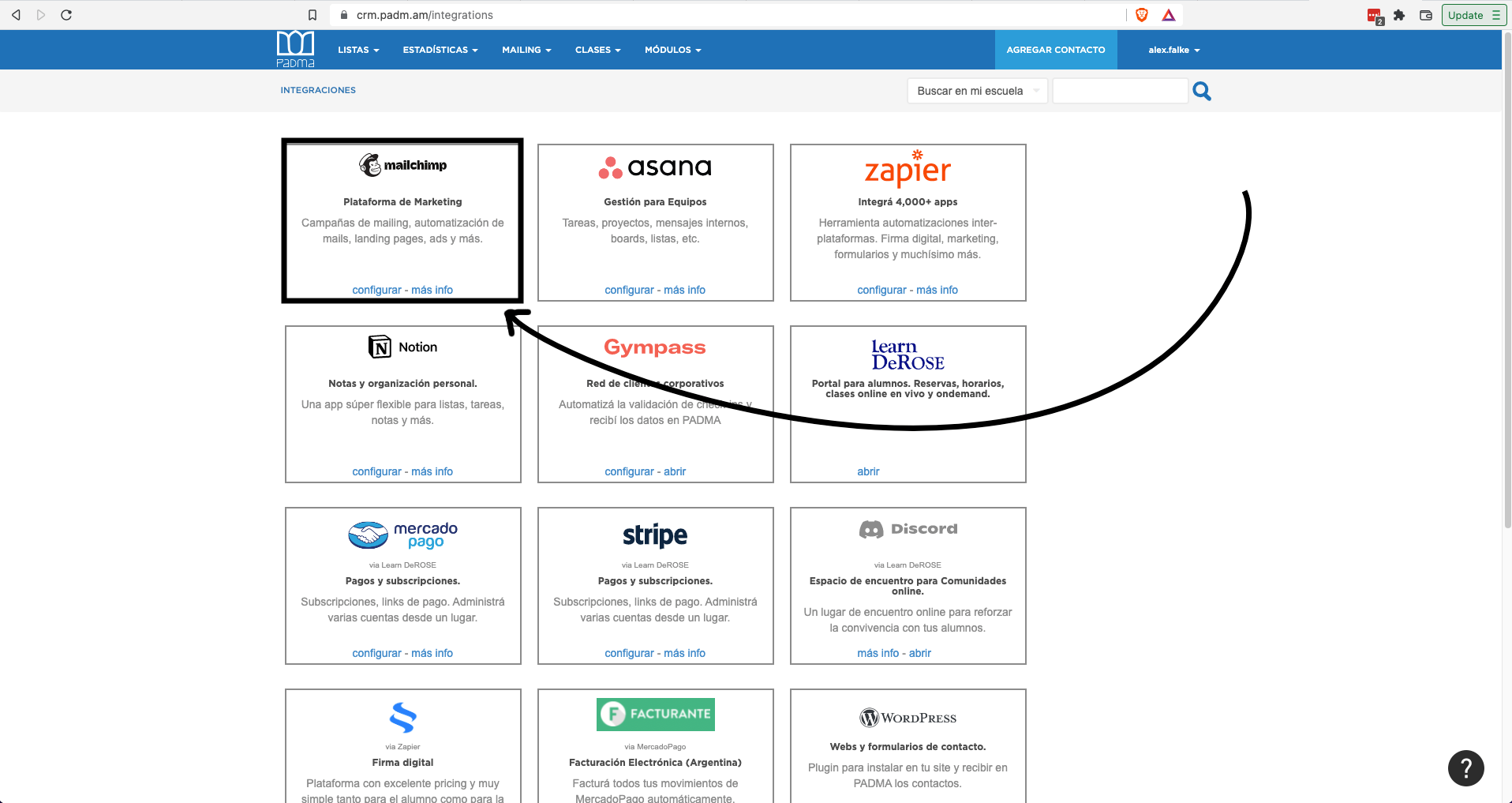
To connect your Mailchimp account with your PADMA enter “All integrations” and in the Mailchimp box click “configure”
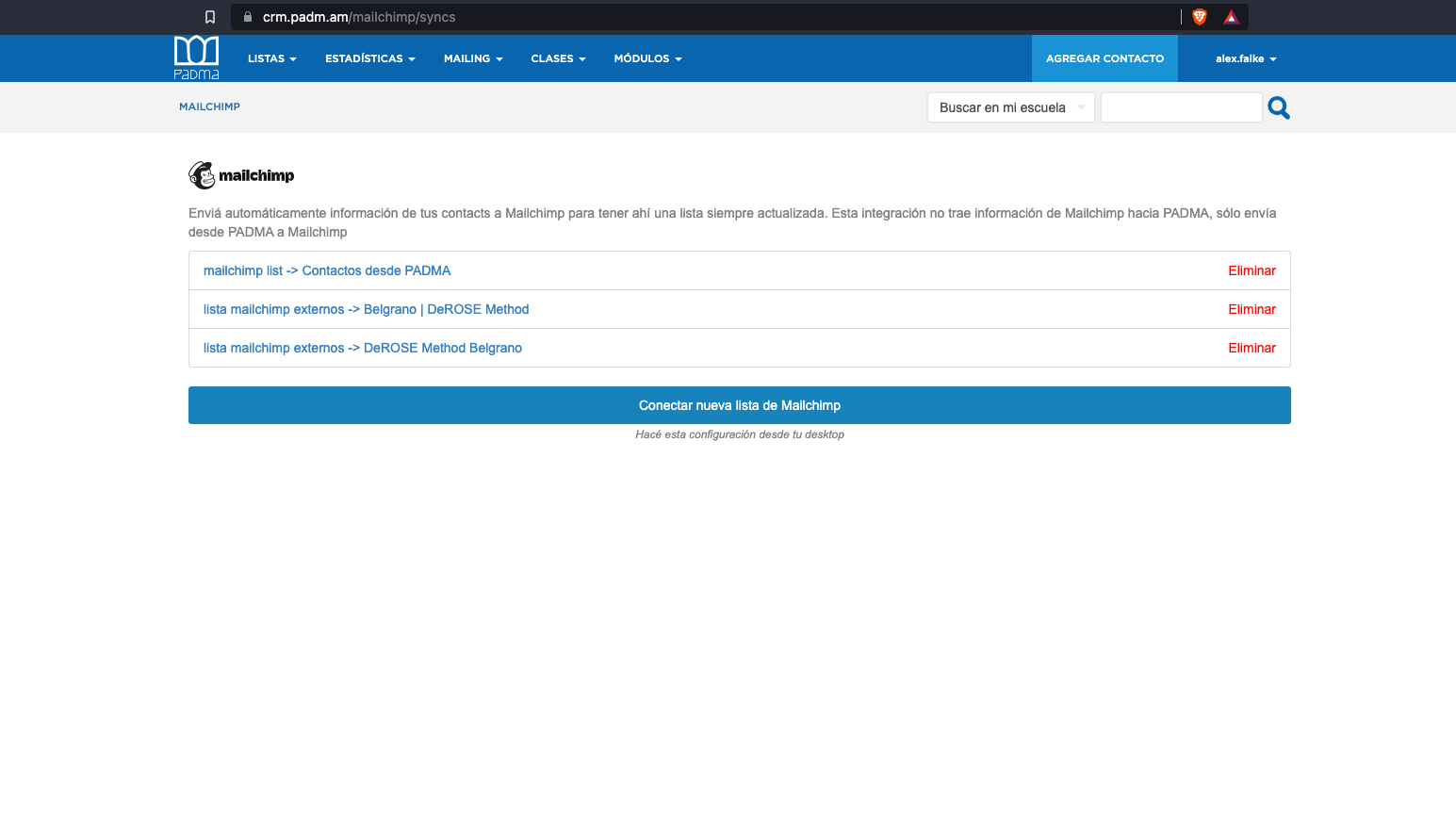
On this screen click “Connect new Mailchimp list”
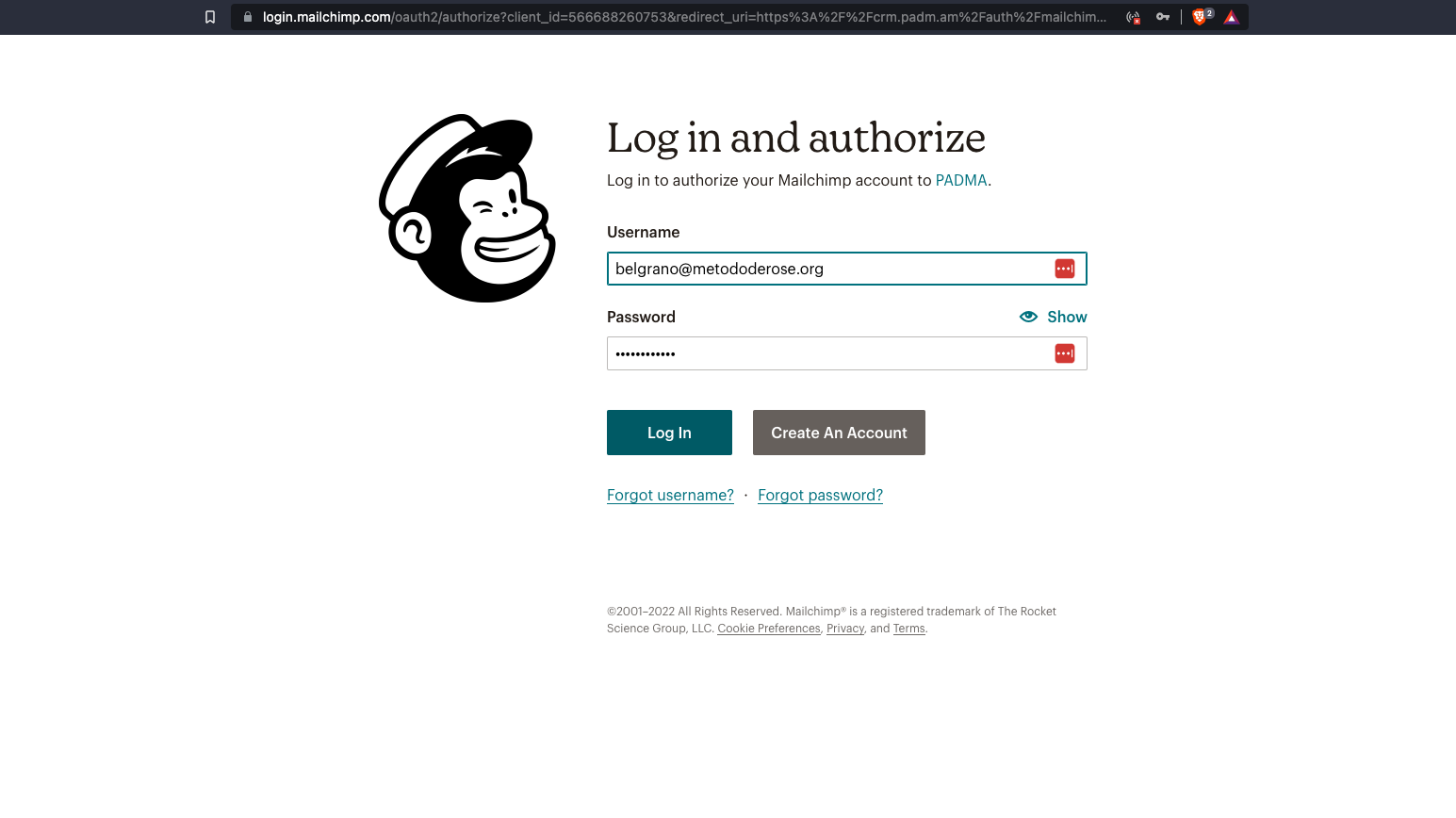
Log in to your Mailchimp account.
Select a PADMA list to synchronize.
- You can use an existing list.
- You can create a list for this integration.
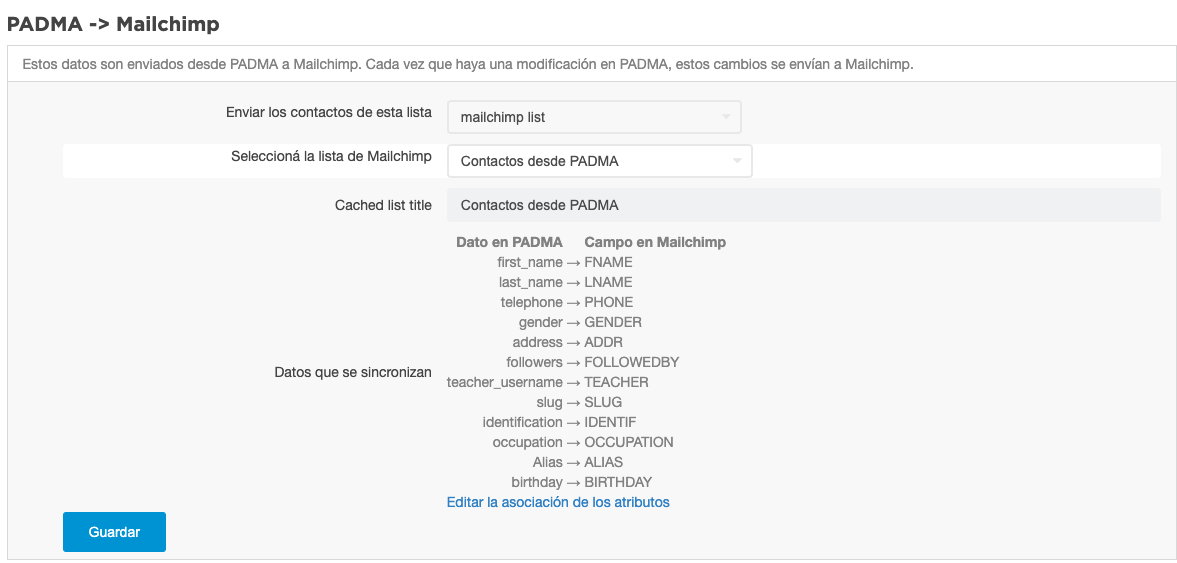
Synchronize contacts from a list
Once the list is selected, the contacts belonging to that list are automatically synchronized each time they are modified in Padma.
If you want to synchronize all contacts at once, click the button: send contacts now.
Receive contacts from Mailchimp
The integration brings the contacts registered in the selected Mailchimp list to Padma. If the contact already exists in Padma, add a comment stating that they subscribed to the list. If the contact does not exist, it creates it.
You can choose to enable or disable this option in the corresponding section.

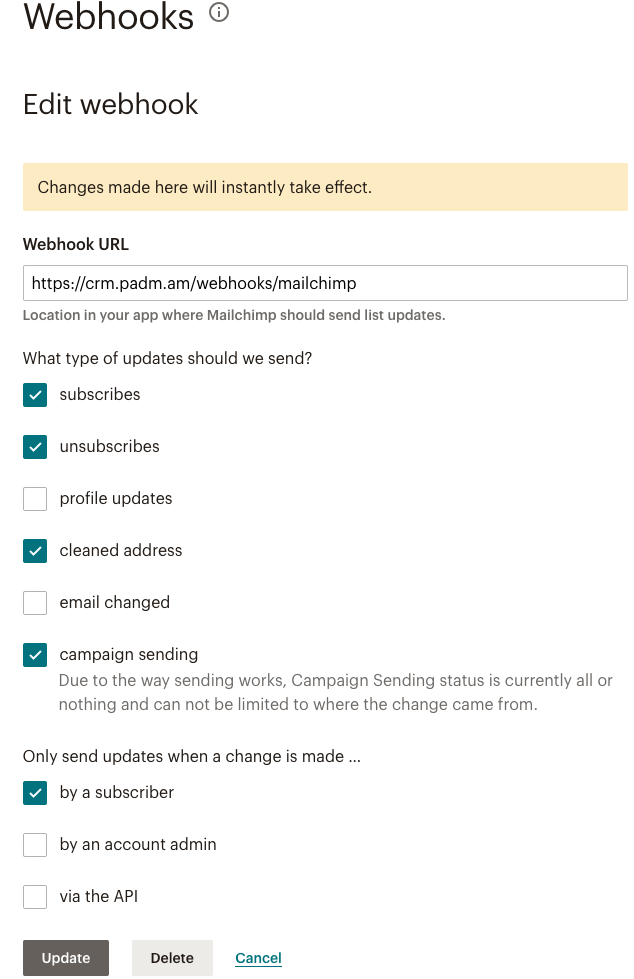
At the present moment, only contacts who subscribe to the list are created. If you want to bring contacts who are added by the list administrator or from an API, you can go to the Mailchimp list, select the list, go to Settings, go to the Webhooks section and also select these options.
Check if contacts are synchronized

In this section, you can see how many contacts from the selected PADMA list are in the corresponding Mailchimp list. If there are contacts that are not present in Mailchimp, you can click to see the list of those contacts.
In the list are the people, it is shown if the e-mail of the person is present and there is also an option to add the contact at the moment. If the contact cannot be added, a corresponding message from Mailchimp will be displayed.
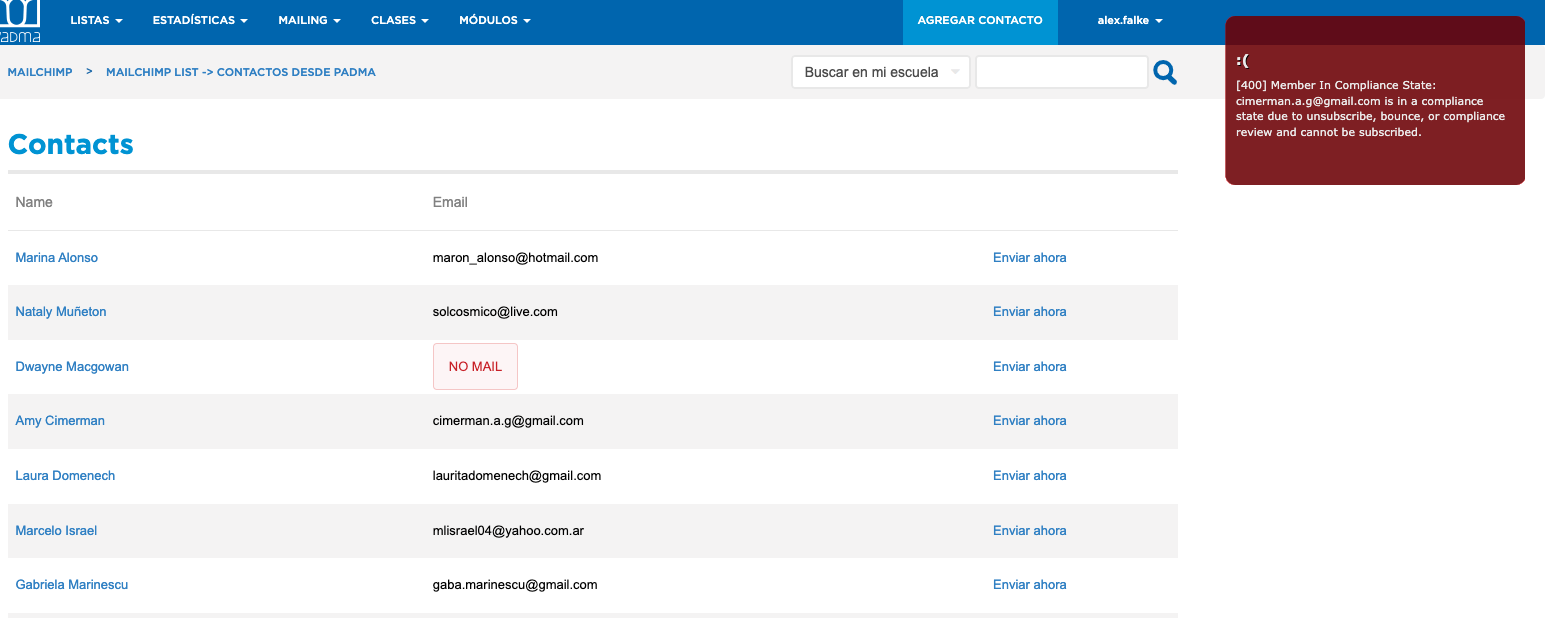
For example, in this case, the person is "unsubscribed" in Mailchimp and cannot be added.