
Gift Cards
Automatic translation. View original
How to obtain printed GiftCards
The printed GiftCards are sold by the DeROSE Cerviño school: whatsapp
Manage my GiftCards
Entering the advanced panel of Learn, in “Other settings > Gifts Gifts”
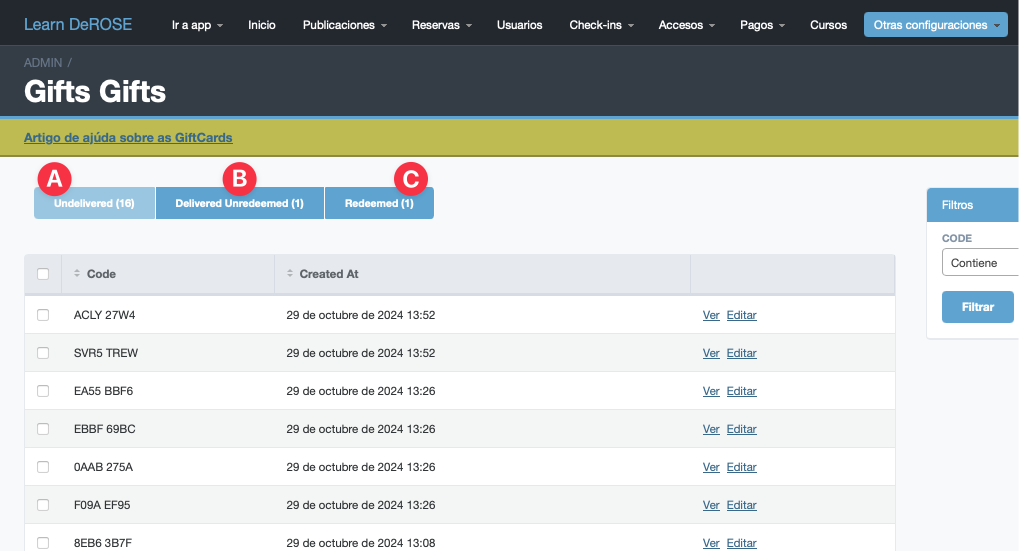
A) GiftCards that have not yet been delivered. They will not be available in the redemption system.
B) GiftCards that have already been delivered and are enabled and available in the redemption system.
C) GiftCards that have already been redeemed for their respective benefit.
Edit the content of the GiftCard
Entering the details of a GiftCard you have the button to edit its content.
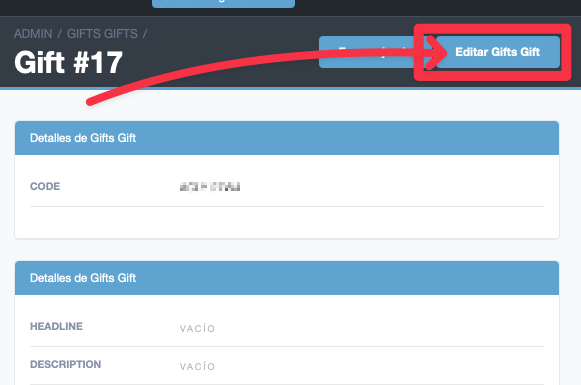
You will access a form to set:
Whoever redeems the giftCard will arrive at a landing page with that content.
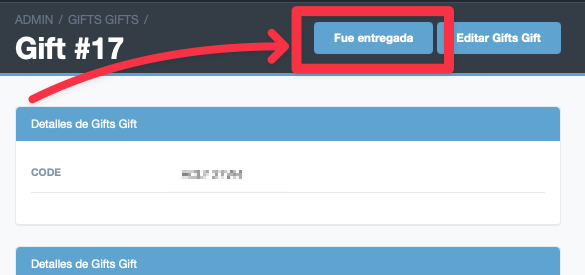
Mark a GiftCard as delivered
Entering the details of a GiftCard you have the button to mark it as delivered. This enables the code so that it can be redeemed in the redemption system.
Mark a GiftCard as redeemed
Entering the details of a GiftCard, if it has already been delivered, you have the button to mark it as redeemed.
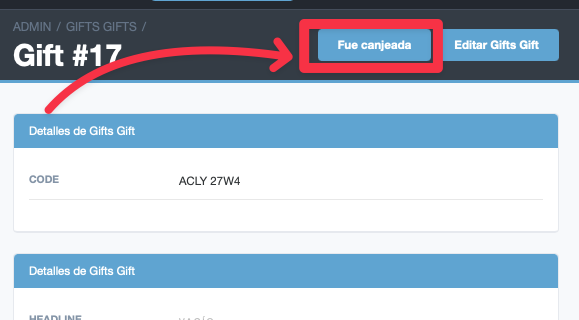
Once this is done the code will no longer be available for redemption.
How the student/prospect redeems their GiftCard
The student must scan the QR on the GiftCard or enter at gift.derose.app
There they have a field to enter their GiftCard code.
By entering the code, the user will arrive at a screen with the information that the school configured. (see “Edit the content of the GiftCard” above)
If the GiftCard was not marked as “delivered” it will not be available in the redemption system.