
Gift Cards
Automatic translation. View original
How to obtain printed GiftCards
The printed GiftCards are sold by the DeROSE Cerviño school: whatsapp
Manage my GiftCards
By entering the advanced Learn panel, in “Other settings > Gifts Gifts”
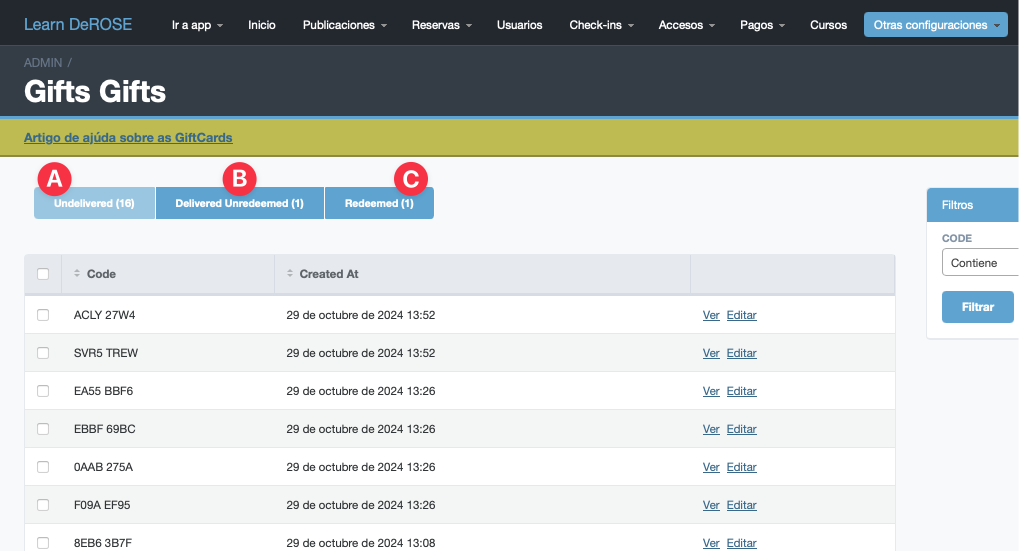
A) GiftCards that have not yet been delivered. They will not be available in the redemption system.
B) GiftCards that have already been delivered and are enabled and available in the redemption system.
C) GiftCards that have already been redeemed for their respective benefit.
Edit the content of the GiftCard
By entering the detail of a GiftCard you have the button to edit its content.
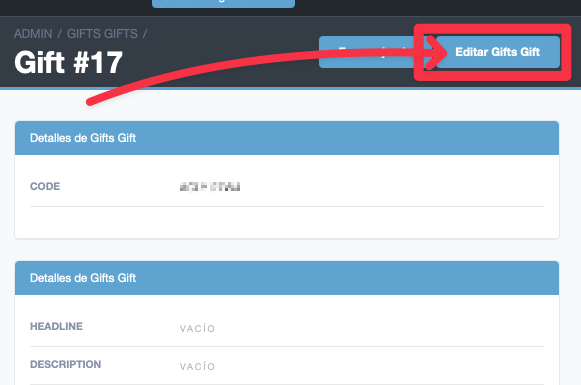
You will access a form to set:
Whoever redeems the GiftCard will arrive at a landing page with that content.
Mark a GiftCard as delivered
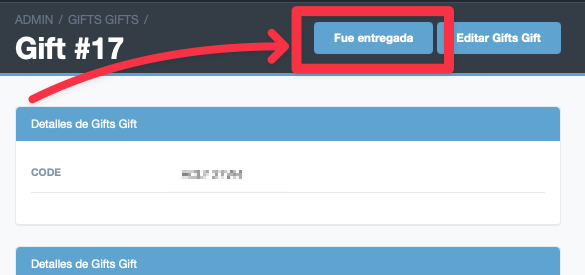
By entering the detail of a GiftCard you have the button to mark it as delivered. This enables the code so it can be redeemed in the redemption system.
Mark a GiftCard as redeemed
By entering the detail of a GiftCard, if it has already been delivered, you have the button to mark it as redeemed.
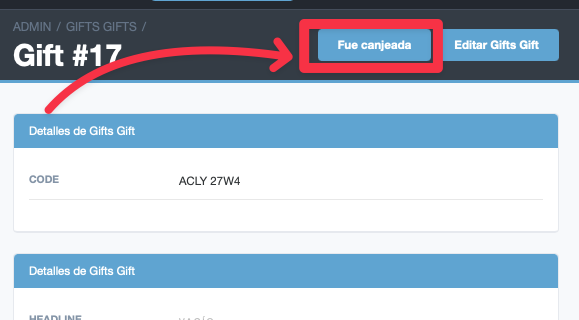
Once this is done the code will no longer be available to be redeemed.
How the student/prospect redeems their GiftCard
The student must scan the QR on the GiftCard or enter gift.derose.app
There you have a field to enter your GiftCard code.
Upon entering the code the user will reach a screen with the information the school configured. (see “Edit the content of the GiftCard” above)
If the GiftCard was not marked as “delivered” it will not be available in the redemption system.