
Error “Cannot access this site” ?
Automatic translation. View original
If you see one of these errors when trying to access the platform:
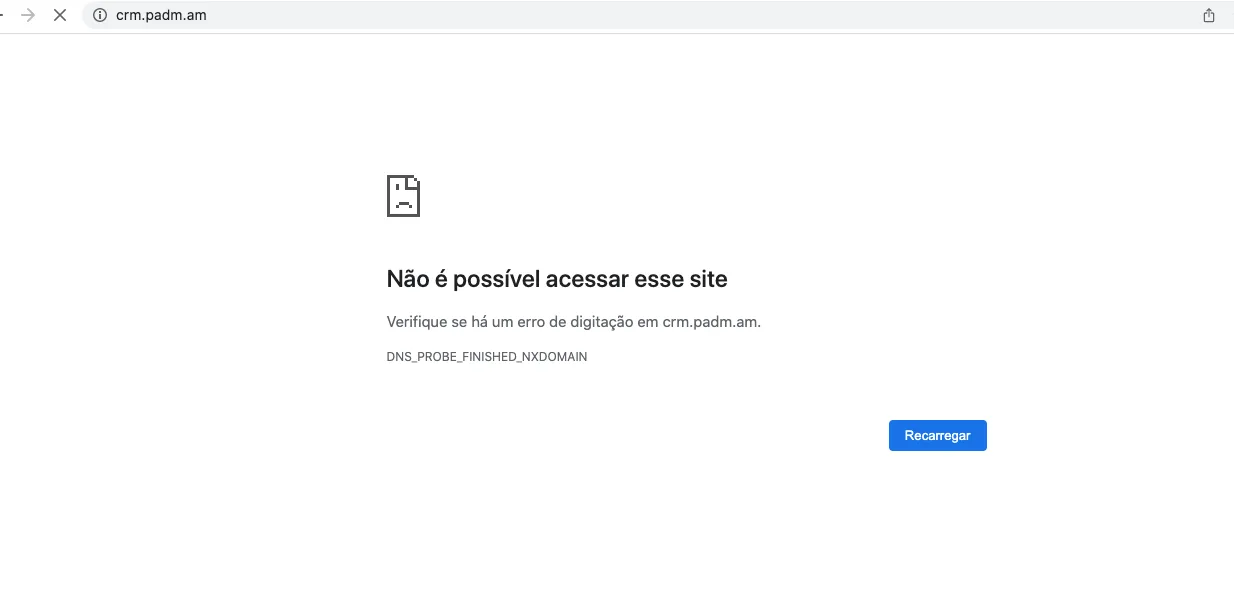
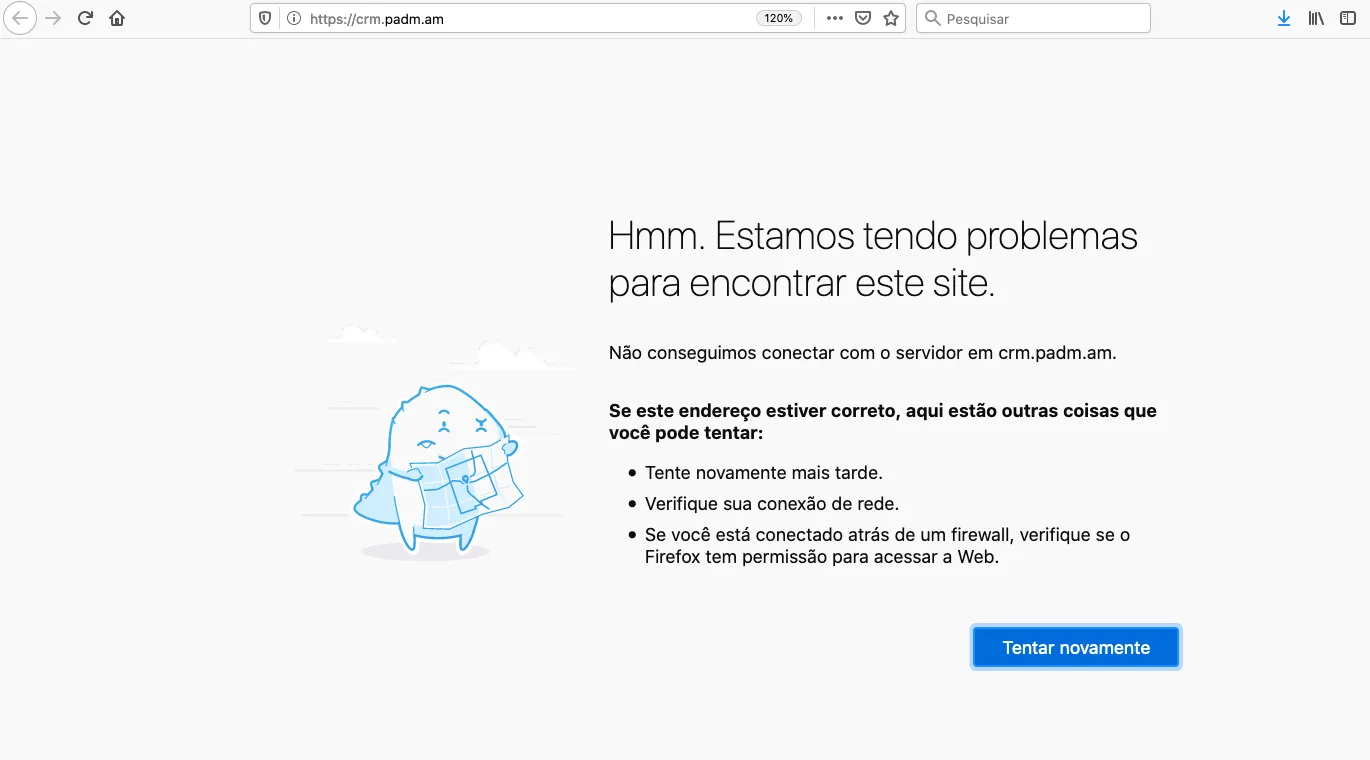
The error DNS_PROBE_FINISHED_NXDOMAIN is a connection error that is on your internet provider (ISP) and therefore tends to happen on some specific networks. For example, when you cannot access a site from wifi but can from 4G, or can from one wifi but not from another.
We have here some tips that can help you solve it.
There is technical language here, prepare to advance with patience, step by step.
Change the DNS server
Mac OS
To do this, you need to:
-
go to the Wi-Fi icon.
-
Click on Network Preferences
-
Select the Wi-Fi tab
-
Click on Advanced...
-
go to the DNS tab
-
remove the found option
-
Set these values (choose between CloudFlare or Google):
To use CloudFlare servers:
IPV4:1.1.1.11.0.0.1
IPV6:
2606:4700:4700::11112606:4700:4700::1001
To use Google servers:
IPV4:8.8.8.8-
8.8.4.4
IPV6: 2001:4860:4860::88882001:4860:4860::8844
-
Click Apply
Windows 11
To do this, you need to:
-
go to Settings
-
Click on Network & Internet
-
Select the Wi-Fi tab
-
Click on Hardware Properties
-
On the DNS tab, click Edit
-
In the options, select Manual
-
Set these values (choose between CloudFlare or Google):
To use CloudFlare servers:
IPV4:1.1.1.11.0.0.1
IPV6:
2606:4700:4700::11112606:4700:4700::1001
To use Google servers:
IPV4:8.8.8.8-
8.8.4.4
IPV6: 2001:4860:4860::88882001:4860:4860::8844
-
Save the changes
You can also take advantage of these tutorials:
For mac: https://www.macinstruct.com/tutorials/how-to-change-your-macs-dns-servers/
For windows: https://www.windowscentral.com/how-change-your-pcs-dns-settings-windows-10