Each team member can have different roles in your school. You can add or remove roles according to the person's work.
To change these roles, you need the role **Administration** in this school. The role **Director**, by itself, does not allow managing the team.
## Before starting
Check if the person appears in **Team → Members**. If they do not appear yet, follow the [step-by-step to invite an instructor](/help/primeros-pasos-y-administracion-5ac5b3e1/convite-para-o-padma-da-sua-escola-15ec23ec).
The invitation links the person to the school but does not automatically assign roles. Roles from another school are not copied.
## Open a member's roles
1. Log in to PADMA with your user.
2. Open the school settings from your user menu.
3. Make sure you are in the correct school.
4. Open **Team**.
5. Select **Members**.

6. Find the person in the list.
7. Click on **Edit roles** on that person's line.
The summary next to the name shows the current roles. When there are no roles, it shows **No role assigned**.

## Add or remove roles
In the **Edit roles**window, the **Roles** field shows the roles already assigned.
- **To add:** click the field and select the desired role.
- **To remove:** click the **×** next to the role you want to remove.
You can assign more than one role to the same person.
**Each change is saved automatically.** The button **Close** closes the window; it does not cancel the changes.
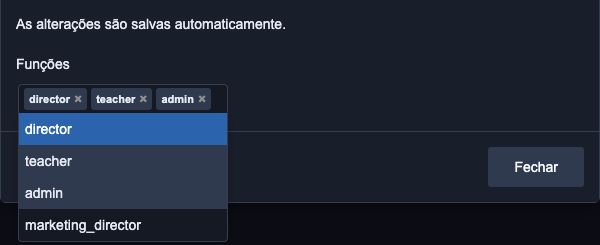
The screenshots show the interface in Portuguese, with personal data outside the frame.
## Which name to select
The selector uses the names below. The team summary shows the translated names.
| Name in selector | Name in summary |
| --- | --- |
| **teacher** | Instructor |
| **admin** | Administration |
| **director** | Management |
| **marketing_director** | Marketing management |
To assign the instructor role, select **teacher**. Assign **admin** only to those who must also manage the school and the team.
The role **director** does not replace **admin** to invite people or change roles.
## Check the result
1. Click on **Close**.
2. Check the roles in the person's summary in **Members**.
If an error appears when updating, reload the page and check the roles before trying again.
## Frequently asked questions
- **"Edit roles" does not appear:** ask someone with Administration in this school to review your permissions.
- **I can't remove my own admin role:** the system prevents you from removing your own Administration role.
- **The person keeps seeing another school:** they should select the correct school in **Active school**, in the profile, and save.
- **I want to remove only one role:** use the **×** in the selector. **Unlink from the school** removes the person's link with the school.