<a id="ec3b8c3736a04fb29108df01af378026"></a><a id="ec3b8c37-36a0-4fb2-9108-df01af378026"></a>

<a id="5f3e8b13847a4f3bac856b581fabe26f"></a><a id="5f3e8b13-847a-4f3b-ac85-6b581fabe26f"></a>

With this public link, prospects can request a class <strong>without needing to create a user</strong> on the platform.

<a id="a616b0b945df4897b8a58de2594b4551"></a><a id="a616b0b9-45df-4897-b8a5-8de2594b4551"></a>

# <a id="cómo-reserva-un-invitado" data-help-heading="true"></a>How a guest makes a reservation

<a id="41af9c0076384d4fbba60e02883d6a33"></a><a id="41af9c00-7638-4d4f-bba6-0e02883d6a33"></a>

## <a id="1-elegir-día-y-horario" data-help-heading="true"></a>1\. Choose day and time

<a id="8675cce90ee54e339e5cb66ea45a5baf"></a><a id="8675cce9-0ee5-4e33-9e5c-b66ea45a5baf"></a>

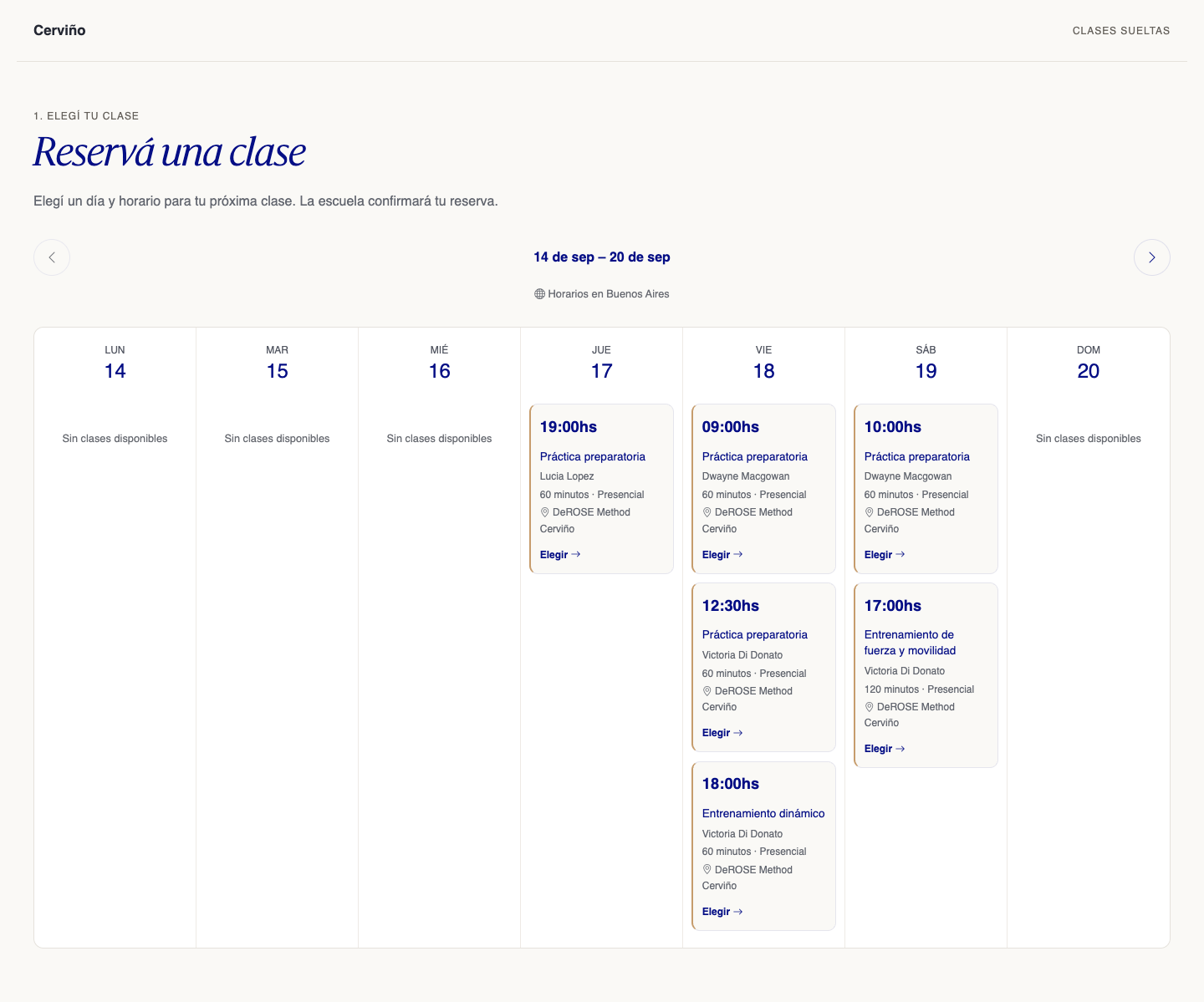
The landing page shows the school's available classes, with schedule, instructor, duration, and modality. Arrows allow browsing through available weeks. Schedules are shown in the visitor's detected timezone or, if not detected, in the school's timezone; the timezone used appears on screen.

<a id="a07c7403f84b4715ad8338ef6b748d71"></a><a id="a07c7403-f84b-4715-ad83-38ef6b748d71"></a>

On a computer, the full week is displayed in columns, including days without available classes.

<a id="00d2a9e5d43242c6a7a3333c1b4336ed"></a><a id="00d2a9e5-d432-42c6-a7a3-333c1b4336ed"></a>

<img src="/help-assets/654c31023663a887138b5b92b688d67704f48d088fd1ea1bde023016e3eeb70e.png" alt="guest-booking-calendar-desktop.png">

<a id="3527918fe5a5422ebbab871176bc0b40"></a><a id="3527918f-e5a5-422e-bbab-871176bc0b40"></a>

<em>Weekly calendar</em>

<a id="da4e77c5c7bc42fb8f49f23a449e2b4f"></a><a id="da4e77c5-c7bc-42fb-8f49-f23a449e2b4f"></a>

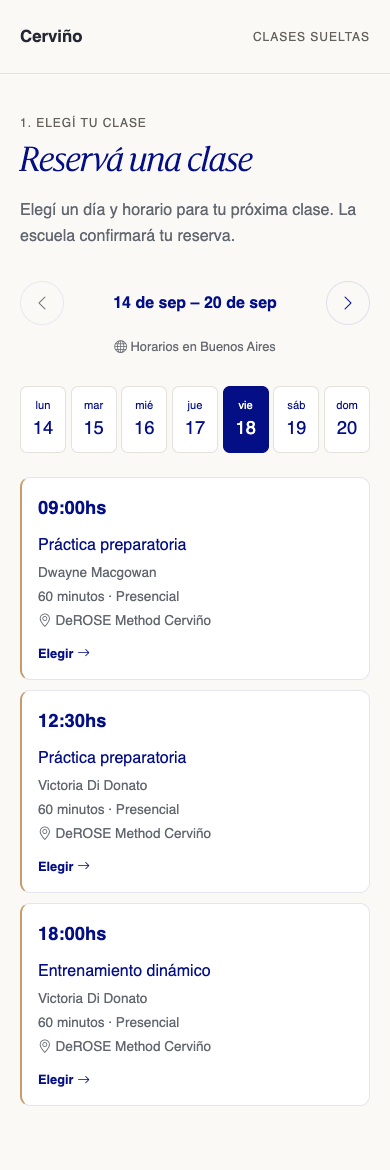
On mobile, tap a day to see its classes. Choose a time to continue.
<a id="7959539a17fa4ddfbb85e3259a562dfa"></a><a id="7959539a-17fa-4ddf-bb85-e3259a562dfa"></a>

<img src="/help-assets/8b788249c50cf3189399c38c126eac388715dd02a58ea83d200d9a2e362b1ba4.png" alt="guest-booking-calendar-mobile.png">

<a id="68f427215fc44e94be71bd22cf0d1832"></a><a id="68f42721-5fc4-4e94-be71-bd22cf0d1832"></a>

<em>Day and class selector on mobile</em>

<a id="cf4a7268670d4e3fbda48bc19ffa55cd"></a><a id="cf4a7268-670d-4e3f-bda4-8bc19ffa55cd"></a>

## <a id="2-elegir-modalidad-cuando-corresponda" data-help-heading="true"></a>2\. Choose modality, when applicable

<a id="34134dee01224856ae4658f446b09ba3"></a><a id="34134dee-0122-4856-ae46-58f446b09ba3"></a>

If a hybrid class has both online and in-person options available at the same time, it appears only once in the calendar. When chosen, the guest selects the modality before completing their data. Only enabled and available modalities are offered; if schedules differ, they appear separately.

<a id="d728db4eed44452eab25dd554e0a3363"></a><a id="d728db4e-ed44-452e-ab25-dd554e0a3363"></a>

## <a id="3-completar-los-datos-y-solicitar-la-reserva" data-help-heading="true"></a>3\. Complete the data and request the reservation

<a id="ed74d30ac087474ab2d0a452a3662955"></a><a id="ed74d30a-c087-474a-b2d0-a452a3662955"></a>

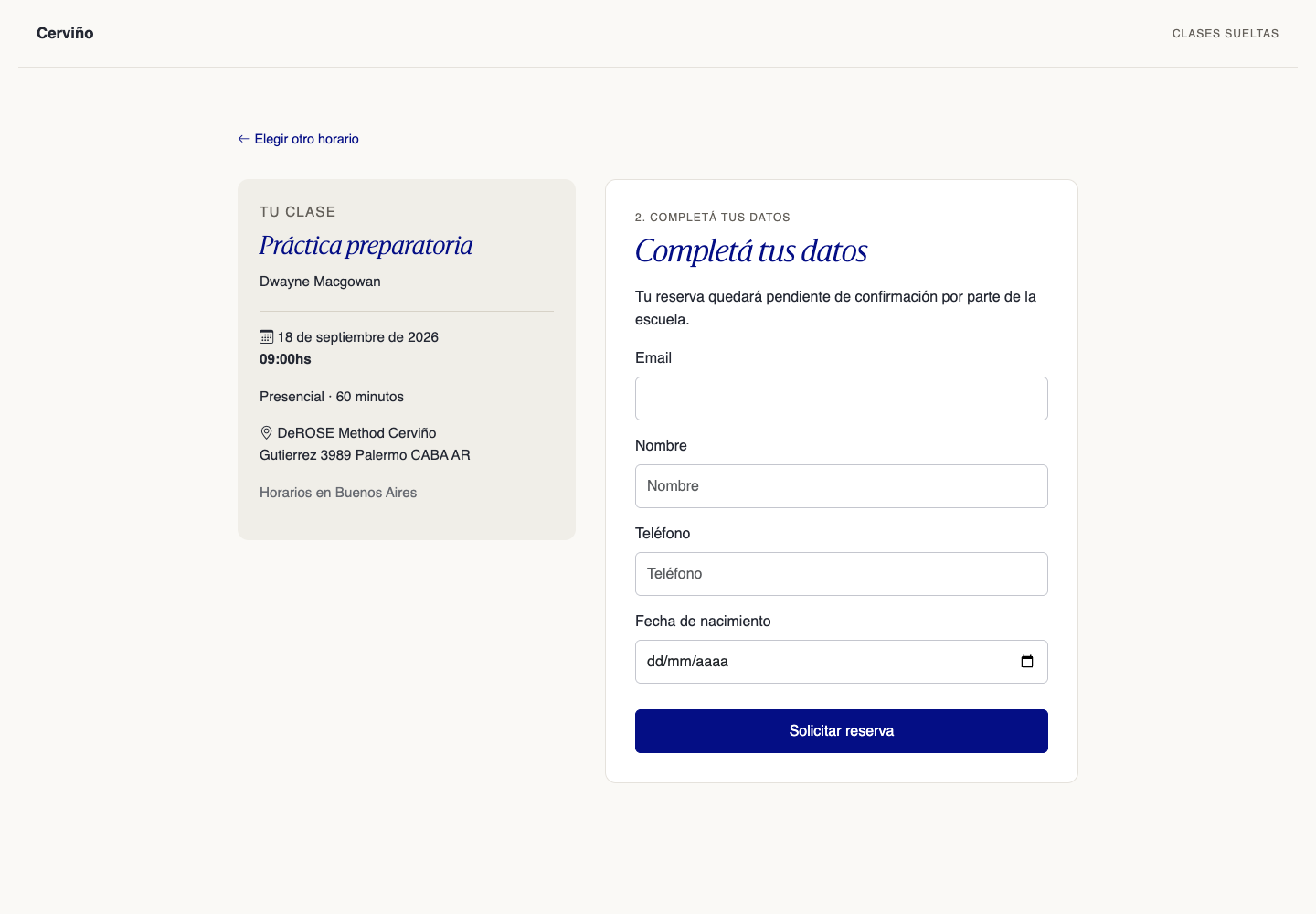
The form shows a summary of the chosen class and its full description, when available. Email is required and the additional data configured by the school is requested. The screenshot shows an example with name, phone, and birth date; fields may vary.
<a id="a2385b48b89040199f5c306e281fa841"></a><a id="a2385b48-b890-4019-9f5c-306e281fa841"></a>

<img src="/help-assets/be4c063affef7695a1a2fb935280fb87a0fba8ea0ac104ff3672f6a1659cba4f.png" alt="guest-booking-form.png">

<a id="e8d929876b8849a9b360430ce165e1ca"></a><a id="e8d92987-6b88-49a9-b360-430ce165e1ca"></a>

<em>Class summary and request form </em>

<a id="7c22aa7ccc8740ce9174fb260b728bc9"></a><a id="7c22aa7c-cc87-40ce-9174-fb260b728bc9"></a>

The guest can go back with <strong>Choose another time</strong>. If the school does not require payment, the form is sent with <strong>Request reservation</strong>. If payment is required, the price is shown before completing data and continues with <strong>Continue to payment</strong>. The system rechecks availability before saving the request.

<a id="9ab56e2321254a4d970b68603f6e4644"></a><a id="9ab56e23-2125-4a4d-970b-68603f6e4644"></a>

## <a id="4-confirmar-la-reserva" data-help-heading="true"></a>4\. Confirm the reservation

<a id="b22666fc42f1454aba9b6b4662c78f8e"></a><a id="b22666fc-42f1-454a-ba9b-6b4662c78f8e"></a>

<strong>Without payment:</strong> the request remains pending manual confirmation by the school. The reservation page shows its current status: pending, confirmed, or cancelled, along with instructions configured by the school when applicable.

<a id="508d0f05619a436f89a263b58cfd594c"></a><a id="508d0f05-619a-436f-89a2-63b58cfd594c"></a>

<strong>With payment:</strong> the spot is held for <strong>15 minutes</strong> while the guest pays via Mercado Pago or Stripe, according to the school's configuration. No need to create a user or log in to Learn. The reservation is confirmed automatically when Learn verifies payment approval; returning from the payment page alone does not confirm the reservation.

<a id="764d06baab304687b8c323edcf0a2715"></a><a id="764d06ba-ab30-4687-b8c3-23edcf0a2715"></a>

The guest can keep the private reservation link to check status and, while the period remains valid, use <strong>Continue or retry payment</strong>. It can also be used to <strong>Check status</strong>. The confirmation email includes the link to check the reservation again without registering.

<a id="2dce1d58072f4531a95f8f4a1b7b5645"></a><a id="2dce1d58-072f-4531-a95f-8f4a1b7b5645"></a>

If the period expires, the spot is released. <strong>If you have already paid, wait for confirmation before making another reservation.</strong> An approved payment after expiration can confirm the reservation if the class is still valid and there is availability; otherwise, it is for school review.

<a id="2486ff3485b44d2ba9239ea4f86696ee"></a><a id="2486ff34-85b4-4d2b-a923-9ea4f86696ee"></a>

The landing does not include waitlist registration.

<a id="20c74333484747b69caefcfde23de627"></a><a id="20c74333-4847-47b6-9cae-fcfde23de627"></a>

### <a id="estados-del-pago" data-help-heading="true"></a>Payment statuses

- <a id="eab4b430d4b245f1bcd7d88c0c4a5dbe"></a><a id="eab4b430-d4b2-45f1-bcd7-d88c0c4a5dbe"></a><strong>Pending payment:</strong> approval is still awaited. The screen shows until what time the spot is held.
- <a id="b8eb4c43184b41628d59dd7336a4f395"></a><a id="b8eb4c43-184b-4162-8d59-dd7336a4f395"></a><strong>Payment approved:</strong> Learn received the payment. Also check the reservation status, which may change if the school cancels it later.
- <a id="415a4423b2494cfd921fb84e1ea5bb77"></a><a id="415a4423-b249-4cfd-921f-b84e1ea5bb77"></a><strong>Payment deadline expired:</strong> the spot was released. If you have already paid, wait for confirmation before making another reservation.
- <a id="85b100daa67c4ab08ea19babe911207d"></a><a id="85b100da-a67c-4ab0-8ea1-9babe911207d"></a><strong>Payment received: requires review:</strong> payment was received but the reservation could not be confirmed. Contact the school to coordinate a solution or refund.

<a id="74ecca004c9e4711be8d31c3832ce590"></a><a id="74ecca00-4c9e-4711-be8d-31c3832ce590"></a>

<a id="2ce3717218924e408fa748f7d8218749"></a><a id="2ce37172-1892-4e40-8fa7-48f7d8218749"></a>

👉 <strong>Without payment, the school confirms manually. With payment, verified approval confirms the reservation, unless review is required.</strong>

<a id="4558b9e673084a49b951378a1165d537"></a><a id="4558b9e6-7308-4a49-b951-378a1165d537"></a>

👉 <strong>This feature allows reservations on classes that do not require a reservation to participate. </strong>

<a id="11b00202a56444edbaaa3bb7e0eaa4ec"></a><a id="11b00202-a564-44ed-baaa-3bb7e0eaa4ec"></a>

<a id="cd1e68640f0a4c4cbb586b7ad61255e4"></a><a id="cd1e6864-0f0a-4c4c-bb58-6b7ad61255e4"></a>

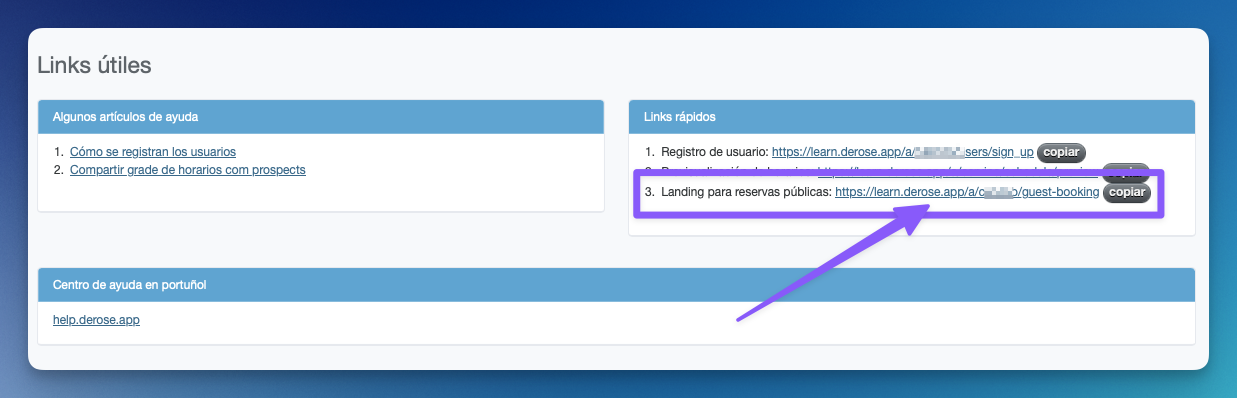
When guest reservations are enabled, find your school's link on the advanced panel homepage in the useful links section. The format is <code>https://learn.derose.app/a/TU\_ESCUELA/guest-booking</code>; replace <code>TU\_ESCUELA</code> with your school's identifier.

<a id="62f33e829a1a464f83beb5b40c093b3d"></a><a id="62f33e82-9a1a-464f-83be-b5b40c093b3d"></a>

The following historical screenshot serves as reference to locate the link:
<a id="66735397181841b99980341af430b3d8"></a><a id="66735397-1818-41b9-9980-341af430b3d8"></a>

<img src="/help-assets/b24c37005327c8799ab8fec529b56659432b8dbbe4c9e06efa79f4217b5d828e.png" alt="CleanShot 2023-09-12 at 17.54.09.png">

<a id="7f1c094d29104167b7d9cbf8a421a10d"></a><a id="7f1c094d-2910-4167-b7d9-cbf8a421a10d"></a>

# <a id="configuración" data-help-heading="true"></a>Configuration

<a id="7fbbf9b8cc46444fa3249bb94d4692b5"></a><a id="7fbbf9b8-cc46-444f-a324-9bb94d4692b5"></a>

In the advanced panel (<code>/admin</code>), edit your school's configuration and look for the section <strong>Guest reservations</strong>. There you can enable or disable guest reservations, choose whether to show a button on the school page, and configure the access template, grade, and reservation deadlines.

<a id="d8eea5e0aa8f448fad0ded2c72c6f4da"></a><a id="d8eea5e0-aa8f-448f-ad0d-ed2c72c6f4da"></a>

## <a id="habilitar-las-reservas-y-mostrar-el-botón" data-help-heading="true"></a>Enable reservations and show the button

<a id="fb39f8b142db46399f3da6825d2b7ba4"></a><a id="fb39f8b1-42db-4639-9f3d-a6825d2b7ba4"></a>

In the selector <strong>Guest reservations</strong>, choose one of these three options and save changes:

<a id="e26c0877b1ff4675bc3372fc759736d5"></a><a id="e26c0877-b1ff-4675-bc33-72fc759736d5"></a>

<table><thead><tr><th><a id="8df18553aefd448681a2cea4c9113487"></a><a id="8df18553-aefd-4486-81a2-cea4c9113487"></a>Option</th><th>What it allows</th><th>Button on the school page</th></tr></thead><tbody><tr><td><a id="dd17030131e7421b9e6730fc05efcbf3"></a><a id="dd170301-31e7-421b-9e67-30fc05efcbf3"></a><strong>Disabled</strong></td><td>Guests cannot make new reservations on their own. The landing and reservation forms return 404 (page not found).</td><td>Not shown.</td></tr><tr><td><a id="8dfc57c462db41ee9f032ef2bb918ca4"></a><a id="8dfc57c4-62db-41ee-9f03-2ef2bb918ca4"></a><strong>Enabled</strong></td><td>Guests can reserve from the landing link, as before.</td><td>Not shown.</td></tr><tr><td><a id="0369aff4818243be95f537f85e7cbf8f"></a><a id="0369aff4-8182-43be-95f5-37f85e7cbf8f"></a><strong>Enabled with button on school page</strong></td><td>Allows the same reservations and facilitates access from the school's public page.</td><td>Shows <strong>Reserve now</strong>, which opens the reservation landing.</td></tr></tbody></table>

<a id="bf743131171643c7b923141a6d9db799"></a><a id="bf743131-1716-43c7-b923-141a6d9db799"></a>

The default option is <strong>Enabled</strong>, without button, for both existing and new schools.

<a id="07061f58c1b24ff2b7b9e653a1ce047a"></a><a id="07061f58-c1b2-4ff2-b7b9-e653a1ce047a"></a>

The button appears before the list of links of <code>https://learn.derose.app/a/TU\_ESCUELA</code>, also for those already logged in. Its text adapts to the page's language.

<a id="4b9c2f268a8148a9bdc01696d4ab408e"></a><a id="4b9c2f26-8a81-48a9-bdc0-1696d4ab408e"></a>

### <a id="qué-pasa-al-deshabilitar" data-help-heading="true"></a>What happens when disabling

<a id="4bf563ad1240470daa8abccb5fb9014b"></a><a id="4bf563ad-1240-470d-aa8a-bccb5fb9014b"></a>

New reservations from the landing, direct class links, and embedded landing on other websites are blocked. It is also not possible to submit a reservation from a form opened before disabling the feature.

<a id="92238dff76054f7a881ef019ed76e94e"></a><a id="92238dff-7605-4f7a-881e-f019ed76e94e"></a>

<strong>Previous reservations are preserved:</strong> the guest can still check their status from the reservation link and the school can continue managing them. Student reservations and those created by the school do not change.

<a id="3f0dd230d3f34a37b93ed5309c5edba0"></a><a id="3f0dd230-d3f3-4a37-b93e-d5309c5edba0"></a>

To resume receiving guest reservations, choose either of the two enabled options and save.

<a id="b03ec89efa844da09949ca7106a1182d"></a><a id="b03ec89e-fa84-4da0-9949-ca7106a1182d"></a>

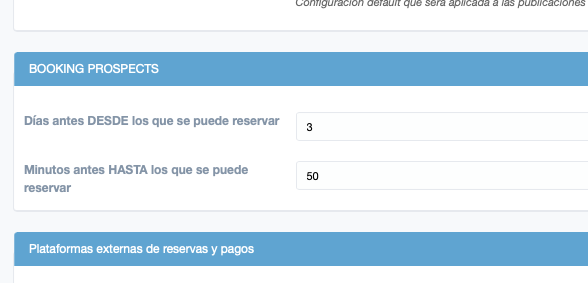
The following screenshot corresponds to the previous configuration; the new access controls are described below:
<a id="2a09a92a85544001ba1e2aac18335881"></a><a id="2a09a92a-8554-4001-ba1e-2aac18335881"></a>

<img src="/help-assets/955484007218b566a18be16b5abef94027f192846ca81165b8b53a94d90f1de9.png" alt="CleanShot 2023-09-13 at 15.28.45.png">

<a id="e79f5d06b5ab4b1c9584468500d7fab4"></a><a id="e79f5d06-b5ab-4b1c-9584-468500d7fab4"></a>

<a id="212043d5ca134d5d813f997638cf7e02"></a><a id="212043d5-ca13-4d5d-813f-997638cf7e02"></a>

## <a id="configurar-reservas-pagas" data-help-heading="true"></a>Configure paid reservations

1. <a id="7b126c43843847fa800c4672219846ed"></a><a id="7b126c43-8438-47fa-800c-4672219846ed"></a>In the advanced panel, create or review a <strong>single payment link</strong> for the school from payment links management.
1. <a id="81ae7b8eaa85479e8ef5a9e74a919aac"></a><a id="81ae7b8e-aa85-479e-8ef5-a9e74a919aac"></a>Use an amount greater than zero and a gateway <strong>Mercado Pago or Stripe of the same school</strong>, with an accepted currency. The link must be active, without associated accesses, no subscription, and no ecommerce order.
1. <a id="9c148bf231434c4386e19097dde2e0a1"></a><a id="9c148bf2-3143-4c43-86e1-9097dde2e0a1"></a>In the school's configuration, within <strong>Guest reservations</strong>, choose this link in <strong>Payment to confirm reservation</strong> and save.
1. <a id="8fff1b23153a44d3870dc6e3c22c265e"></a><a id="8fff1b23-153a-44d3-870d-c6e3c22c265e"></a>Open the landing to check price and currency before sharing.

<a id="43b649c7802847fbbb711cf54a6ba012"></a><a id="43b649c7-8028-47fb-bb71-1cf54a6ba012"></a>

The chosen amount, currency, and gateway apply to <strong>all guest reservations</strong> for the school. This configuration does not allow different prices per class. The access template still defines which classes can be reserved; the payment link charges the reservation and does not grant a plan or subscription.

<a id="1adeac69872946b8b62fd860f12054ae"></a><a id="1adeac69-8729-46b8-b62f-d860f12054ae"></a>

To keep manual confirmation without payment, choose <strong>No payment</strong>. Changing the price or link affects new reservations; existing ones keep original conditions and their consultation link. Disabling guest reservations or removing payment also does not remove those links.

<a id="5212a6dc37254e2f86c118f0ac122db2"></a><a id="5212a6dc-3725-4e2f-86c1-18f0ac122db2"></a>

If the link does not appear in the selector, check that it belongs to the school, is not archived, and meets previous conditions.

<a id="02c5558333b24fb58d0307f95114747b"></a><a id="02c55583-33b2-4fb5-8d03-07f95114747b"></a>

## <a id="gestionar-pagos-cancelaciones-y-devoluciones" data-help-heading="true"></a>Manage payments, cancellations, and refunds

<a id="decfae22c01845f7ba776dc1ec77b2e5"></a><a id="decfae22-c018-45f7-ba77-6dc1ec77b2e5"></a>

In the advanced panel's reservation detail, you can check <strong>payment status, amount, gateway, and payment references</strong>. While a reservation waits for payment, it cannot be confirmed manually or attendance recorded; notification of reservation creation is sent upon payment approval.

<a id="a5cdeaff31314846a51a41a8b79f1d86"></a><a id="a5cdeaff-3131-4846-a51a-41a8b79f1d86"></a>

When a payment arrives late and the reservation cannot be confirmed—for example, due to no availability, schedule change, or class cancellation—the school is notified to review the payment. Duplicate payments also generate a notification for review. Use payment references to reconcile with the gateway and resolve the reservation or refund.

<a id="d54a10e4f3d84b27b58745a91bec0eca"></a><a id="d54a10e4-f3d8-4b27-b587-45a91bec0eca"></a>

<strong>Cancellations and refunds are managed manually with the school. Cancelling a reservation does not automatically refund payment.</strong> The guest must contact the school to request them.

<a id="9a26a4b519a547069be98ac1d6588f3b"></a><a id="9a26a4b5-19a5-4706-9be9-8ac1d6588f3b"></a>

If a reservation or its class is deleted, the payment history is preserved with original guest data, class, schedule, and payment references. An approved payment after deletion requires school review.

<a id="1893160bddf2804aba19f8aea44894cb"></a><a id="1893160b-ddf2-804a-ba19-f8aea44894cb"></a>

## <a id="configurar-qué-clases-aparecen" data-help-heading="true"></a>Configure which classes appear

1. <a id="7ca4a2afb4d342c3a639a04a50e4976d"></a><a id="7ca4a2af-b4d3-42c3-a639-a04a50e4976d"></a>Choose an <strong>access template of the same school</strong> in guest reservations configuration.
1. <a id="1893160bddf2808baf63d283871bd87f"></a><a id="1893160b-ddf2-808b-af63-d283871bd87f"></a>Set the <strong>grade</strong> which will be used to determine which classes a guest can reserve.
1. <a id="0c18640f43884963aec395f53619c850"></a><a id="0c18640f-4388-4963-aec3-95f53619c850"></a>Check modalities, included classes, blocked classes, and enabled courses in that template.
1. <a id="d0a88189eb764171a9a3afe2a26ac3ca"></a><a id="d0a88189-eb76-4171-a9a3-afe2a26ac3ca"></a>Save and open the public link to check results.

<a id="a46bebf85c1c46c68a34d32f84032e71"></a><a id="a46bebf8-5c1c-46c6-8a34-d32f84032e71"></a>

The landing uses this saved configuration for all visitors. Changing preview or template parameters in the URL, or opening it with a student session, does not change guest permissions. The reservation link shown within presets leads to the same school landing.

<a id="fccbbe3455054457b419b86cf4b9d171"></a><a id="fccbbe34-5505-4457-b419-b86cf4b9d171"></a>

Public visibility can also enable a class, always subject to applicable restrictions. Therefore, it is advisable to review both the template and class visibility. Having a direct public link does not by itself guarantee a class can be reserved.

<a id="00ef505f8e624c5386b70cb145859512"></a><a id="00ef505f-8e62-4c53-86b7-0cb145859512"></a>

If no configuration exists yet, a template is initialized with in-person access enabled, online and on-demand disabled, and grade 0. Review these values before sharing the link.

<a id="17ee9e9b969246a3baedd07aeeb402c1"></a><a id="17ee9e9b-9692-46a3-baed-d07aeeb402c1"></a>

Preview of schedules remains documented in <a href="https://app.notion.com/p/cfe2e5d834d4429699075390c80bccef?pvs=204">Share schedule grade with prospects</a>; to share the new reservation experience, use the dedicated link in this guide.

<a id="34d5f1e554ab4e6c85edf0d7c98be557"></a><a id="34d5f1e5-54ab-4e6c-85ed-f0d7c98be557"></a>

## <a id="disponibilidad-y-anticipación" data-help-heading="true"></a>Availability and anticipation

<a id="f516ff3508c5483faae0d5011960760f"></a><a id="f516ff35-08c5-483f-aae0-d5011960760f"></a>

In addition to permissions, a class must be published, have space, and be within the reservation timeframe. Cancelled classes, hidden for that date, full, or outside the timeframe are not offered. Unlisted classes do not appear in the general calendar.

<a id="6ebbaefa14f34b9dbf22f7295203d5c1"></a><a id="6ebbaefa-14f3-4b9d-bf22-f7295203d5c1"></a>

You can define how many days before the reservation is enabled and up to how many minutes before start it is accepted. If these values are not defined for guests, class values are used.

<a id="1d80862791dd4c10aec98d57a833c170"></a><a id="1d808627-91dd-4c10-aec9-8d57a833c170"></a>

If no schedules appear, check the selected week, permissions, grade, capacity, and reservation deadlines. If configuration is not available, the landing asks the visitor to contact the school.

<a id="d82dbfdbbea24ed49f32d41d6a42100b"></a><a id="d82dbfdb-bea2-4ed4-9f32-d41d6a42100b"></a>

<a id="94a6e758376e4226aece55802b213199"></a><a id="94a6e758-376e-4226-aece-55802b213199"></a>

> If you want to request <strong>additional data</strong> <strong>from prospects </strong>in the reservation form, write to our support team: <a href="https://app.notion.com/p/4a5c74de19db45cf9703c63177a6cfeb?pvs=204">Contact</a> 

<a id="892a148af2e340e4a9becbdc6c2550f6"></a><a id="892a148a-f2e3-40e4-a9be-cbdc6c2550f6"></a>

<a id="f06533f72119428a80e341d2aaa08d1b"></a><a id="f06533f7-2119-428a-80e3-41d2aaa08d1b"></a>

# <a id="link-para-reserva-en-una-clase-específica" data-help-heading="true"></a>Link for reservation in a specific class

<a id="8f7c6a1dc3f74c26a79ae1da63a1e7f0"></a><a id="8f7c6a1d-c3f7-4c26-a79a-e1da63a1e7f0"></a>

With guest reservations enabled, you can find a class's reservation link in the BOOKINGS tab of the advanced panel, when available. You can also filter the landing by adding <code>?post\_id=ID\_DE\_LA\_CLASE</code> to your school's link.

<a id="f7e5b6d063eb41afa3cdef890daada0a"></a><a id="f7e5b6d0-63eb-41af-a3cd-ef890daada0a"></a>

The direct link respects the same permissions and availability controls as the general landing. <strong>Enabling the class public link does not replace guest access configuration.</strong> An unlisted class can be opened by direct link only if authorized for guests and meets availability requirements.

<a id="71e530a352a14b38a4d85b2e21a2bd87"></a><a id="71e530a3-52a1-4b38-a4d8-5b2e21a2bd87"></a>

The following video is a reference of the previous interface to locate the link; the new path is shown in the above screenshots.

<a id="1363160bddf28024a05ff85a56022d59"></a><a id="1363160b-ddf2-8024-a05f-f85a56022d59"></a>

<a id="1363160bddf28086abaacbf64b3d65b2"></a><a id="1363160b-ddf2-8086-abaa-cbf64b3d65b2"></a>

<a href="/help-assets/7073718ff6157eea0ccdc448d5209f69b830466a23bf8116928fa831473661a2.mp4">video2043404591.mp4</a>

<a id="f79950bfb8364e2d9ff034cc58473357"></a><a id="f79950bf-b836-4e2d-9ff0-34cc58473357"></a>

# <a id="embeber-en-tu-propio-site" data-help-heading="true"></a>Embed in your own site

<a id="edd25c2daa154dd19fa712a3a3cf0264"></a><a id="edd25c2d-aa15-4dd1-9fa7-12a3a3cf0264"></a>

You can embed this landing inside your own website with this code:

<a id="9096bf5b1e5a41cc8e57075d5908bf60"></a><a id="9096bf5b-1e5a-41cc-8e57-075d5908bf60"></a>

```html
<iframe src="https://learn.derose.app/a/TU_ESCUELA/guest-booking?embedded=true" title="Reservá una clase"></iframe>
```

<a id="239ec28b00cf4d79b645e4508efb5d69"></a><a id="239ec28b-00cf-4d79-b645-e4508efb5d69"></a>

It is important to add the parameter <mark><strong>embedded=true</strong></mark>

<a id="fc05fa54f7a247d68d5b25b002ca4a03"></a><a id="fc05fa54-f7a2-47d6-8d5b-25b002ca4a03"></a>

If the school requires payment, the Mercado Pago or Stripe checkout opens outside the embedded frame. The spot holding period continues to be 15 minutes.

<a id="e213b0c8a6ff4e9ba811a57686e74fd5"></a><a id="e213b0c8-a6ff-4e9b-a811-a57686e74fd5"></a>
