<a id="8783ff9c13814030a2bee1d1d44d77db"></a><a id="8783ff9c-1381-4030-a2be-e1d1d44d77db"></a>

<a id="e311213250334471ac63b64dab21828f"></a><a id="e3112132-5033-4471-ac63-b64dab21828f"></a>

# <a id="acessar-a-tela-de-configuração-da-wellhubgympass" data-help-heading="true"></a>Access the Wellhub/Gympass configuration screen

<a id="543e4bbdf32c4444a6ecffea758c628a"></a><a id="543e4bbd-f32c-4444-a6ec-ffea758c628a"></a>

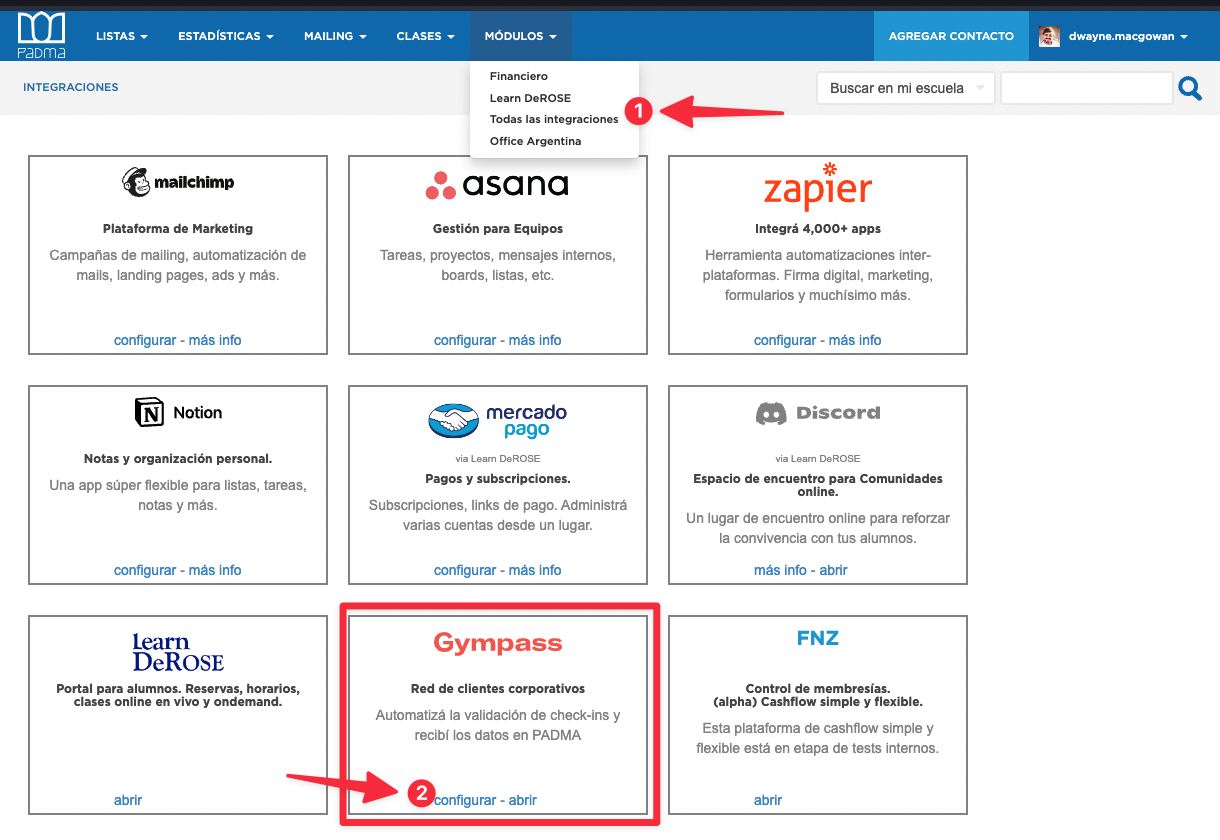
To connect your Gympass account with your PADMA, go to “All integrations” and in the Gympass box click on “configure”:
<a id="a8b2448f835d415eaae5a6af93c3135d"></a><a id="a8b2448f-835d-415e-aae5-a6af93c3135d"></a>

<img src="/help-assets/270f659fb22cdd456f77a58f43db108a9a6b6fc5013e0518abe94301de103830.png" alt="CleanShot 2022-07-07 at 09.42.57.png">

<a id="c0b6758f1b5f47178353f1b9ad80c75c"></a><a id="c0b6758f-1b5f-4717-8353-f1b9ad80c75c"></a>

<a id="58b9ac56c1c441dcb97fe49fa9c331bd"></a><a id="58b9ac56-c1c4-41dc-b97f-e49fa9c331bd"></a>

# <a id="minha-conta-já-foi-linkada" data-help-heading="true"></a>Has my account already been linked?

<a id="769fa337d187464eb397ee0cd9ea7d88"></a><a id="769fa337-d187-464e-b397-ee0cd9ea7d88"></a>

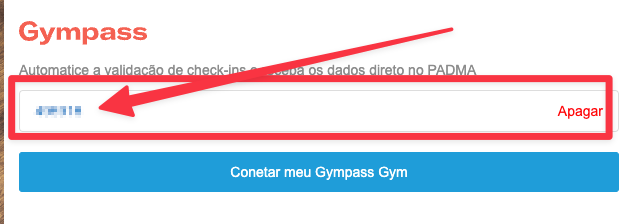
If your GymID is already showing there, then your account is already linked with Gympass.
<a id="5f8abb86078a4d9788c0e4dbb94c0993"></a><a id="5f8abb86-078a-4d97-88c0-e4dbb94c0993"></a>

<img src="/help-assets/2eafb8f26bb8c5216b5ae75007611e3ceb486f4f57797f0b626a44d5912c1c9e.png" alt="CleanShot 2022-12-27 at 14.19.54.png">

<a id="ce431f4c0f51471c98350be35db51336"></a><a id="ce431f4c-0f51-471c-9835-0be35db51336"></a>

<a id="d7e2ff601d164894942d698ced2fd143"></a><a id="d7e2ff60-1d16-4894-942d-698ced2fd143"></a>

# <a id="cómo-linkar-sua-conta" data-help-heading="true"></a>How to link your account

<a id="026a139f6bd94dc0adfe43b79a446b43"></a><a id="026a139f-6bd9-4dc0-adfe-43b79a446b43"></a>

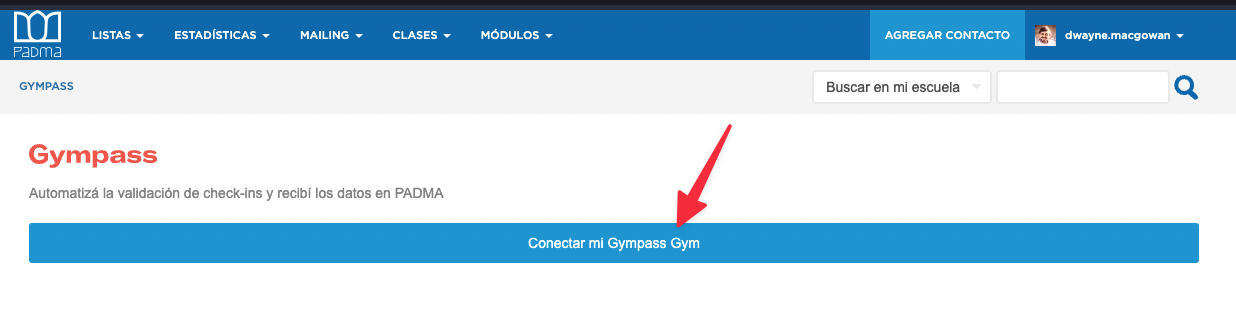
On this screen click on “Connect my Gympass Gym”
<a id="c7ec590fec0f4f48851b03d3a46094e5"></a><a id="c7ec590f-ec0f-4f48-851b-03d3a46094e5"></a>

<img src="/help-assets/845319bd6bc2f552353dac77f0c176b9da64ad82cef4aaee5405ee7fc98a8af7.png" alt="CleanShot 2022-07-07 at 09.46.07.png">

<a id="1347091c2cfb4c4492c91bec8d6764c7"></a><a id="1347091c-2cfb-4c44-92c9-1bec8d6764c7"></a>

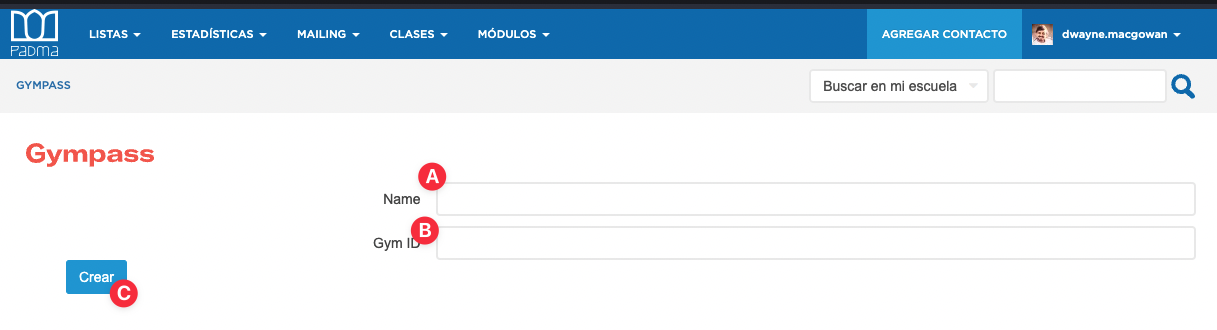
In the form enter a (A) descriptive name (usually the school name - optional data) and the (B) Gym ID provided by Gympass (required data) and (C) save.
<a id="574e2998f11048ee819dfb75dffe310a"></a><a id="574e2998-f110-48ee-819d-fb75dffe310a"></a>

<img src="/help-assets/88ce906637c6521cd4b6023690039d9b48cc05c2ca13468133c7370b46f9f83a.png" alt="CleanShot 2022-07-07 at 09.46.43.png">

<a id="f88d018295224d32b5ad0a55288540f4"></a><a id="f88d0182-9522-4d32-b5ad-0a55288540f4"></a>

> Once done, we will request Gympass to enable the integration on their systems. This may take up to 1 business day.

<a id="6d9745bb22e7451dac1be7fd658246a2"></a><a id="6d9745bb-22e7-451d-ac1b-e7fd658246a2"></a>

<a id="b1b460fe7c3643bbb5f02d743fefc6d2"></a><a id="b1b460fe-7c36-43bb-b5f0-2d743fefc6d2"></a>
