<a id="cecad7594a744375bda807b19adfc1ec"></a><a id="cecad759-4a74-4375-bda8-07b19adfc1ec"></a>

<a id="70f8720968da4a06a98c6343aa93d5f0"></a><a id="70f87209-68da-4a06-a98c-6343aa93d5f0"></a>

- <a href="#da8a64bebca2453399a1a3d17f3f1e5a">How to acquire student cards?</a>
- <a href="#015bdf902b774d9a9dc894e3fdbdcf9d">How to enable the student card for a student?</a>
  - <a href="#13c3160bddf280c0a207c6c577e3d497">The student's first student card</a>
    - <a href="#6223724186d845fd8e2360c858595cc8">How to fill in the student card data?</a>
  - <a href="#13c3160bddf28063b9dfeef12abe5af8">Renewal</a>
- <a href="#0c669d1decc14ef08bae3234bf7e69c4">How does the student access the student card?</a>
- <a href="#b5f4d5e3d3e44c22a24aa04927414b10">How does the school view the student's student card</a>
- <a href="#c7f4662a674f4125a1b1375ba4217bf1">Student card validation</a>

<a id="0f2b5003ef6a40c193c36c366ebc1d97"></a><a id="0f2b5003-ef6a-40c1-93c3-6c366ebc1d97"></a>

> Need help? <a href="/support/new">Contact support</a>.

<a id="da8a64bebca2453399a1a3d17f3f1e5a"></a><a id="da8a64be-bca2-4533-99a1-a3d17f3f1e5a"></a>

# <a id="como-adquirir-carteirinhas" data-help-heading="true"></a>How to acquire student cards?

<a id="01a6ba0681ae4f2e817cd5272976207f"></a><a id="01a6ba06-81ae-4f2e-817c-d5272976207f"></a>

Student cards are acquired through affiliation. In the purchase, only inform the desired quantity: it is not necessary to indicate the students nor their data.

<a id="cca4d500adbe4f8ebb5d729bb633ced9"></a><a id="cca4d500-adbe-4f8e-bb5d-729bb633ced9"></a>

<a id="521fc9bf287246a68319a940ebcf3112"></a><a id="521fc9bf-2872-46a6-8319-a940ebcf3112"></a>

After purchase and the release of credits in Learn, the school can assign the student cards to the students. The release follows the process of your affiliation; if the credits have not appeared yet, check with the affiliation or support.

<a id="5ca4dbccba1f4eed9119433361c855da"></a><a id="5ca4dbcc-ba1f-4eed-9119-433361c855da"></a>

<a id="4fbbcc98886b46e6a3715aa5e26cdb6b"></a><a id="4fbbcc98-886b-46e6-a371-5aa5e26cdb6b"></a>

The credits remain available until they are assigned to a student.

<a id="4869b624c1e1440a8746b7b3538674ff"></a><a id="4869b624-c1e1-440a-8746-b7b3538674ff"></a>

<a id="54d3461f416b47dcab3d36edf654ecd6"></a><a id="54d3461f-416b-47dc-ab3d-36edf654ecd6"></a>

<a id="cfeea23fbfc34444a0de734eb616fc41"></a><a id="cfeea23f-bfc3-4444-a0de-734eb616fc41"></a>

<a id="3436a6e3e68041968038d5f41c640c8f"></a><a id="3436a6e3-e680-4196-8038-d5f41c640c8f"></a>

<a id="0020dadc496a450b949b17b2aac26c4d"></a><a id="0020dadc-496a-450b-949b-17b2aac26c4d"></a>

---

<a id="015bdf902b774d9a9dc894e3fdbdcf9d"></a><a id="015bdf90-2b77-4d9a-9dc8-94e3fdbdcf9d"></a>

# <a id="como-habilitar-a-carteirinha-para-um-aluno" data-help-heading="true"></a>How to enable the student card for a student?

<a id="13c3160bddf280c0a207c6c577e3d497"></a><a id="13c3160b-ddf2-80c0-a207-c6c577e3d497"></a>

## <a id="primeira-carteirinha-do-aluno" data-help-heading="true"></a>The student's first student card

<a id="80dc43dc61154bf5885e788eada722c7"></a><a id="80dc43dc-6115-4bf5-885e-788eada722c7"></a>

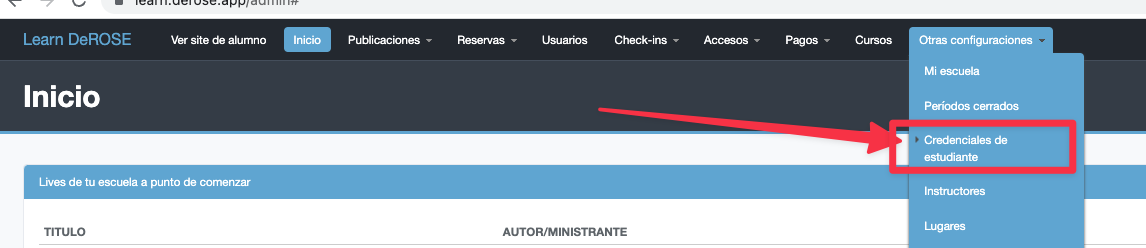
1. In Learn's advanced panel, access **Other settings &gt; Student cards**.

<a id="6c6c174789d1421395a3ae9f9b0c1ef8"></a><a id="6c6c1747-89d1-4213-95a3-ae9f9b0c1ef8"></a>

<img src="/help-assets/c64c3f328f7de8dbb29460b24bc632f007775b54672cd42bb8a5b1523e6679f9.png" alt="Menu de carteirinhas no painel avançado">

<a id="ecf8d638e4764643a3d45f76e421b190"></a><a id="ecf8d638-e476-4643-a3d4-5f76e421b190"></a>

<a id="c994abe3a34a4fbda24228e8f6c70b06"></a><a id="c994abe3-a34a-4fbd-a242-28e8f6c70b06"></a>

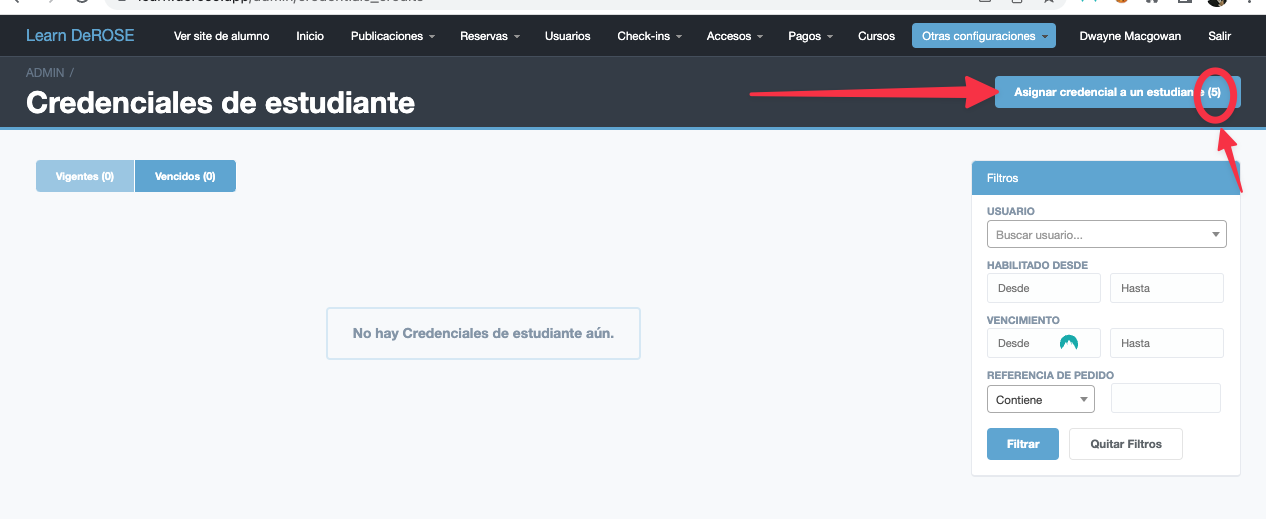
2. Click the button to assign a student card to a student. The number in parentheses indicates how many credits are available. If the number is zero, it will be necessary to acquire more student cards.
<a id="094c0180a37746e3a3b7ad34ea136202"></a><a id="094c0180-a377-46e3-a3b7-ad34ea136202"></a>

<img src="/help-assets/f87f227ac42fb7554483f93193d509ca9ff97855b6b988e5bf302434dba3756d.png" alt="Botão de atribuição e quantidade de créditos disponíveis">

<a id="42211b4152ce47b29eca0b6cc21e9f63"></a><a id="42211b41-52ce-47b2-9eca-0b6cc21e9f63"></a>

<a id="1043160bddf280efa4e6c03316d0c784"></a><a id="1043160b-ddf2-80ef-a4e6-c03316d0c784"></a>

<a id="1043160bddf280879591db74bdf3565f"></a><a id="1043160b-ddf2-8087-9591-db74bdf3565f"></a>

<a id="1043160bddf28015839dd1382220ca07"></a><a id="1043160b-ddf2-8015-839d-d1382220ca07"></a>

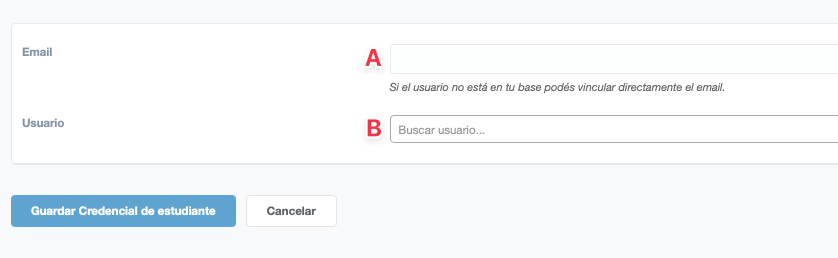
3. In the form, identify the student by one of the options:

<a id="1043160bddf28058bdcce80a37e503da"></a><a id="1043160b-ddf2-8058-bdcc-e80a37e503da"></a>

- **Student not registered in Learn:** inform the e-mail. The student card will be linked to them when they create an account with this same e-mail.

<a id="1043160bddf28046a3acee3586c2acab"></a><a id="1043160b-ddf2-8046-a3ac-ee3586c2acab"></a>

- **Student already registered in Learn:** select the student.

4. Check the data and save.
<a id="db329108fdb44740a1b83614b59884cd"></a><a id="db329108-fdb4-4740-a1b8-3614b59884cd"></a>

<img src="/help-assets/3722c795cf12e7189ffec768b3d8fa2724862b80e8529a82a83949da47471990.png" alt="Formulário de atribuição por e-mail ou seleção do aluno">

<a id="1043160bddf2801bae70fdc7fab869c5"></a><a id="1043160b-ddf2-801b-ae70-fdc7fab869c5"></a>

<a id="1043160bddf280418b24dfc22e4976f0"></a><a id="1043160b-ddf2-8041-8b24-dfc22e4976f0"></a>

<a id="2113e6201614438cb0c95a332215b697"></a><a id="2113e620-1614-438c-b0c9-5a332215b697"></a>

When the card is linked to a Learn user, it will appear in the current cards tab. Assignments by e-mail that have not yet been linked remain in the pending registration tab.

<a id="8ed598b2456a4d65b9890941430a8399"></a><a id="8ed598b2-456a-4d65-b989-0941430a8399"></a>

<a id="5794a34f4bbe46efb4285d75b6ee39f1"></a><a id="5794a34f-4bbe-46ef-b428-5d75b6ee39f1"></a>

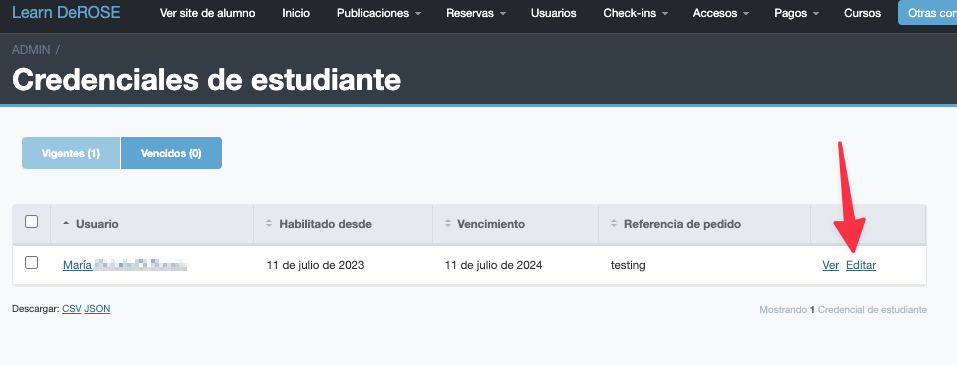
If you assigned the card to the wrong student, click **Edit** to correct the assignment.

<a id="0b378fe6c9b247618e3188a5607f5512"></a><a id="0b378fe6-c9b2-4761-8e31-88a5607f5512"></a>

> The editing period is 2 days after activation. After this period, the school will not be able to change the assignment.
<a id="9a763e7f258d4835b58801e5e58ac481"></a><a id="9a763e7f-258d-4835-b588-01e5e58ac481"></a>

<img src="/help-assets/a09f4a28491eaca94a0f85eef0afd8acdd408fe664b62da515a293ce3bf7f10c.png" alt="Edição da atribuição de uma carteirinha">

<a id="1043160bddf280dd970ac253c5134fab"></a><a id="1043160b-ddf2-80dd-970a-c253c5134fab"></a>

<a id="1043160bddf280a18f58fdc7bb14b4fb"></a><a id="1043160b-ddf2-80a1-8f58-fdc7bb14b4fb"></a>

<a id="0fa41b149208442d8491be42f3a3b89b"></a><a id="0fa41b14-9208-442d-8491-be42f3a3b89b"></a>

**Step-by-step video:**

<a id="2b9bda7fb5cb4f20a73c3efa7639b306"></a><a id="2b9bda7f-b5cb-4f20-a73c-3efa7639b306"></a>

<a href="/help-assets/231012445f240ef66d3744a2cfcc37375a6634f5378edd4d287c07be552dc37d.mp4">card.mp4</a>

<a id="2d111c557e184a5390d29a16c824d1fb"></a><a id="2d111c55-7e18-4a53-90d2-9a16c824d1fb"></a>

<a id="1043160bddf28064968fe72b9794b51c"></a><a id="1043160b-ddf2-8064-968f-e72b9794b51c"></a>

<a id="1043160bddf2806e828ff428b6b9f28f"></a><a id="1043160b-ddf2-806e-828f-f428b6b9f28f"></a>

<a id="1a0f996885014fd5ae5b2396f591d640"></a><a id="1a0f9968-8501-4fd5-ae5b-2396f591d640"></a>

<a id="1043160bddf280e58576e4b13b7f9a91"></a><a id="1043160b-ddf2-80e5-8576-e4b13b7f9a91"></a>

<a id="5fae4ea9787e4a15ab5df4eb0d11c1c2"></a><a id="5fae4ea9-787e-4a15-ab5d-f4eb0d11c1c2"></a>

---

<a id="6223724186d845fd8e2360c858595cc8"></a><a id="62237241-86d8-45fd-8e23-60c858595cc8"></a>

### <a id="como-preencher-os-dados-da-carteirinha" data-help-heading="true"></a>How to fill in the card data?

<a id="1043160bddf280ccb848c6e5e5cdc7ce"></a><a id="1043160b-ddf2-80cc-b848-c6e5e5cdc7ce"></a>

<a id="13c3160bddf28012ac0fdaa2835f2ece"></a><a id="13c3160b-ddf2-8012-ac0f-daa2835f2ece"></a>

#### <a id="escolas-com-padma" data-help-heading="true"></a>Schools with PADMA

<a id="73ff733852ad49219deecc7ed70f22b1"></a><a id="73ff7338-52ad-4921-9dee-cc7ed70f22b1"></a>

- **Name:** comes from the student's Learn profile.

<a id="b3a97df39bf144ce913cd4b620edbaec"></a><a id="b3a97df3-9bf1-44ce-913c-d4b620edbaec"></a>

- **Photo:** the Learn photo is used. If the student does not have a photo in Learn, the photo available in PADMA is used.

<a id="715511633fe24e3fb69476c681434cb9"></a><a id="71551163-3fe2-4e3f-b694-76c681434cb9"></a>

- **DNI / CPF / identity document:** comes from the PADMA registration.

<a id="1043160bddf2809db8f7c09439dcb891"></a><a id="1043160b-ddf2-809d-b8f7-c09439dcb891"></a>

- **Grade:** comes from the student's grade synchronized with PADMA.

<a id="d5cfebe7067b4eddaff3dd8d0bede139"></a><a id="d5cfebe7-067b-4edd-aff3-dd8d0bede139"></a>

<a id="13c3160bddf28022a6adfcd81f343d1f"></a><a id="13c3160b-ddf2-8022-a6ad-fcd81f343d1f"></a>

<a id="9a2f93766a2541f6910475f687799c5b"></a><a id="9a2f9376-6a25-41f6-9104-75f687799c5b"></a>

#### <a id="escolas-sem-padma" data-help-heading="true"></a>Schools without PADMA

<a id="1043160bddf280b8bda0f84a2b5f28b7"></a><a id="1043160b-ddf2-80b8-bda0-f84a2b5f28b7"></a>

- **Name:** comes from the student's Learn profile.

<a id="1043160bddf2805d9f04d414c7ffd279"></a><a id="1043160b-ddf2-805d-9f04-d414c7ffd279"></a>

- **Photo:** comes from the student's Learn profile.

<a id="1043160bddf28099930bc3a2cc49a715"></a><a id="1043160b-ddf2-8099-930b-c3a2cc49a715"></a>

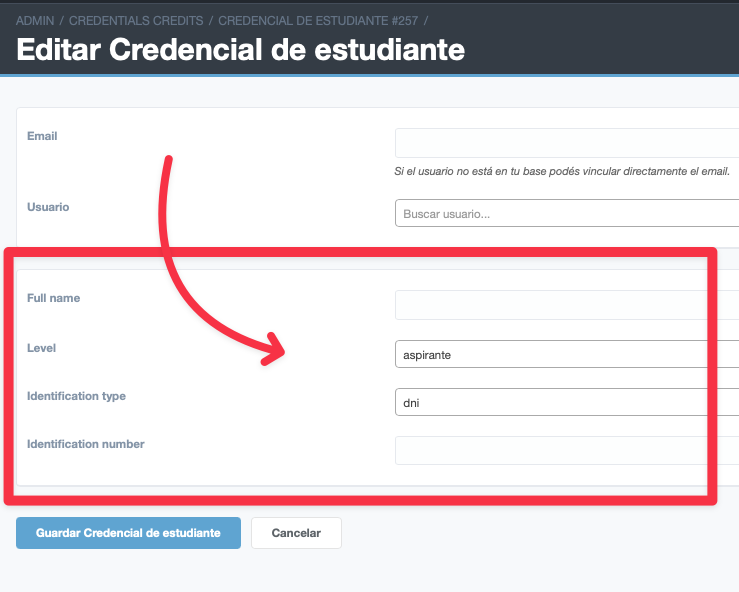
- **DNI / CPF / identity document:** fill in the document type and number in the assignment form.

<a id="a5bf57e33fd544e68ad2cfc5d146bd51"></a><a id="a5bf57e3-3fd5-44e6-8ad2-cfc5d146bd51"></a>

- **Grade:** select in the assignment form.
<a id="1043160bddf2808686fcd501a1103d44"></a><a id="1043160b-ddf2-8086-86fc-d501a1103d44"></a>

<img src="/help-assets/6dbd7f327326eda7e03d028a01ad99b2982281e6339f4b6ce10aea2e93409d5b.png" alt="Dados da carteirinha para escolas sem PADMA">

<a id="7c4270cacc1a44968503e8c0e8d9de67"></a><a id="7c4270ca-cc1a-4496-8503-e8c0e8d9de67"></a>

<a id="8094318755294028a1c5dbbe58493bac"></a><a id="80943187-5529-4028-a1c5-dbbe58493bac"></a>

---

<a id="13c3160bddf28063b9dfeef12abe5af8"></a><a id="13c3160b-ddf2-8063-b9df-eef12abe5af8"></a>

## <a id="renovação" data-help-heading="true"></a>Renewal

<a id="13c3160bddf280bea389fe1e067de543"></a><a id="13c3160b-ddf2-80be-a389-fe1e067de543"></a>

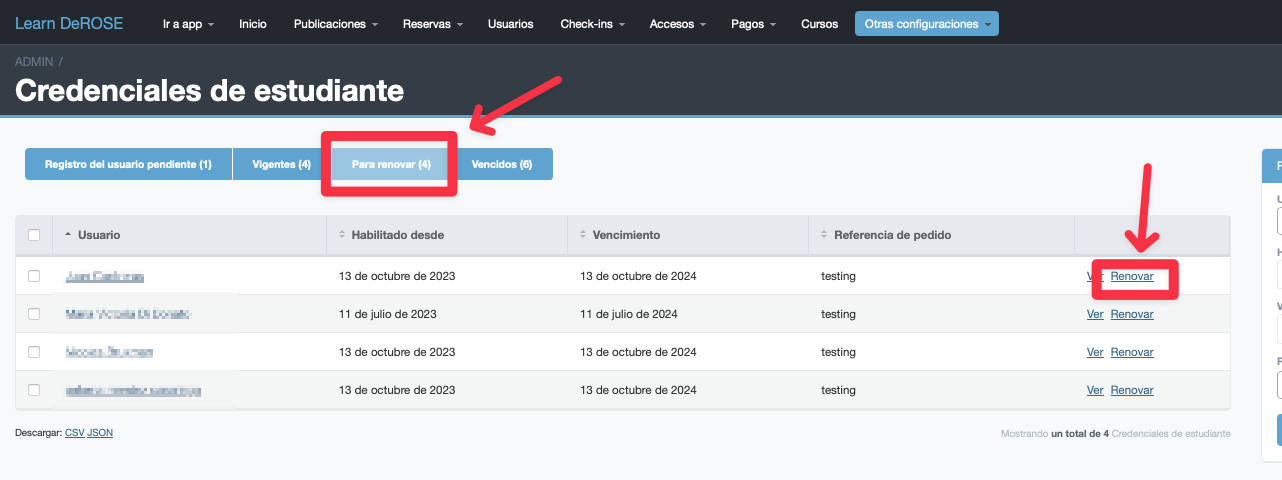
To renew an expired card, go to the tab **To renew** and click on **Renew** in the student record.
<a id="13c3160bddf280f7969eedf6b6ab0c96"></a><a id="13c3160b-ddf2-80f7-969e-edf6b6ab0c96"></a>

<img src="/help-assets/6ce072104509548236eb1d1180221228522cab9bcf93b9baccd4cb71fe1ad9de.png" alt="Lista de carteirinhas para renovar">

<a id="13c3160bddf2809ba217d52810c14dbc"></a><a id="13c3160b-ddf2-809b-a217-d52810c14dbc"></a>

> <a id="b2c49777a72f434982483a30c6c60fff"></a><a id="b2c49777-a72f-4349-8248-3a30c6c60fff"></a> Renewal uses an available credit from the school. It is only available for an expired card, when the student does not yet have another valid card.

<a id="13c3160bddf28009b398c8fcfae98de0"></a><a id="13c3160b-ddf2-8009-b398-c8fcfae98de0"></a>

<a id="13c3160bddf280519bd0c4b8096a686a"></a><a id="13c3160b-ddf2-8051-9bd0-c4b8096a686a"></a>

---

<a id="13c3160bddf280818c3cf44752fe40d8"></a><a id="13c3160b-ddf2-8081-8c3c-f44752fe40d8"></a>

<a id="0c669d1decc14ef08bae3234bf7e69c4"></a><a id="0c669d1d-ecc1-4ef0-8bae-3234bf7e69c4"></a>

# <a id="como-o-aluno-acessa-a-carteirinha" data-help-heading="true"></a>How does the student access the card?

<a id="d9b9692344e04386a0321db3b3831950"></a><a id="d9b96923-44e0-4386-a032-1db3b3831950"></a>

> To open the card, the student needs to log in to their Learn account and have a valid card.

<a id="1043160bddf2805b99daf63a91b7085a"></a><a id="1043160b-ddf2-805b-99da-f63a91b7085a"></a>

<a id="591c124c1aee48309b628239f315e2da"></a><a id="591c124c-1aee-4830-9b62-8239f315e2da"></a>

If the school uses PADMA, the user must also have student status in PADMA. Assigning a credit alone does not replace this requirement.

<a id="5174ffd5b2284c5a8983ef6fe2aa2a5d"></a><a id="5174ffd5-b228-4c5a-8983-ef6fe2aa2a5d"></a>

Learn verifies the card’s validity and, in schools with PADMA, the student status. Without these requirements, the card cannot be opened. Access requires authentication: sharing the link does not make the card public.

<a id="3ce0d751ab4246d9a73b10a3e259499d"></a><a id="3ce0d751-ab42-46d9-a73b-10a3e259499d"></a>

<a id="f9bf2d4f41db4687a33f6ba2875199fe"></a><a id="f9bf2d4f-41db-4687-a33f-6ba2875199fe"></a>

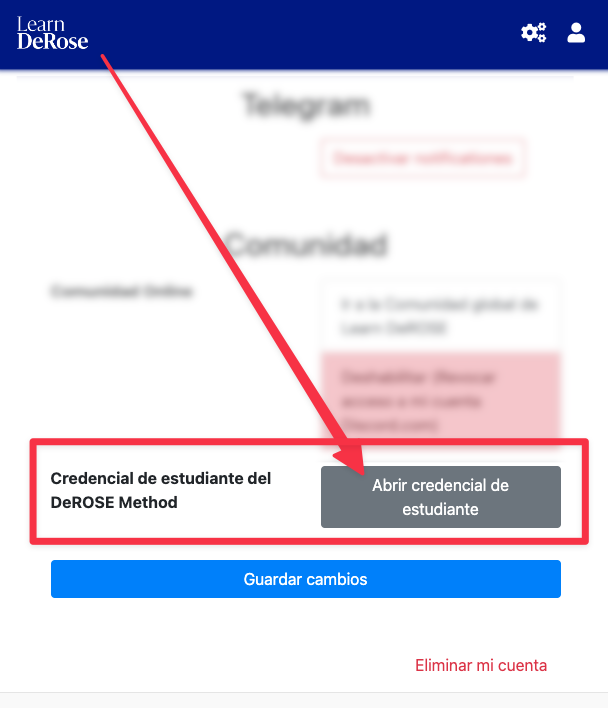
In their Learn profile, the student can use the option to open the student card.
<a id="8162e3edf61e46bba037bce85ccbc134"></a><a id="8162e3ed-f61e-46bb-a037-bce85ccbc134"></a>

<img src="/help-assets/6e77dd543dd5de148c49dae33425a985d805f31a7931bdc3e424cfb9d16e8350.png" alt="Acesso à carteirinha no perfil do aluno">

<a id="f100e44e8ae4466dadcb0345b33e7bf6"></a><a id="f100e44e-8ae4-466d-adcb-0345b33e7bf6"></a>

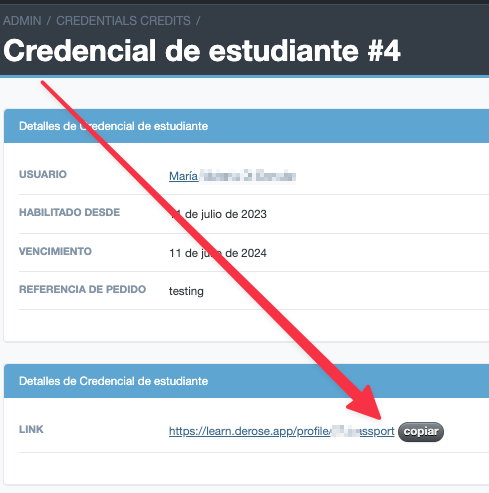
The school can also share the link shown in the card’s details. The student must log in to their account to open it-it:
<a id="3f692de8e45d4d3b943f5c205685059e"></a><a id="3f692de8-e45d-4d3b-943f-5c205685059e"></a>

<img src="/help-assets/b14c70dac8bd70fda5ffdc9d07e7fae72af6631479b122d0b6863a528133d5eb.png" alt="Link nos detalhes da carteirinha">

<a id="c31845faebfb47bba07c461c471846b8"></a><a id="c31845fa-ebfb-47bb-a07c-461c471846b8"></a>

<a id="027fb42c54a847e5bc11707d6a791616"></a><a id="027fb42c-54a8-47e5-bc11-707d6a791616"></a>

<a id="b5f4d5e3d3e44c22a24aa04927414b10"></a><a id="b5f4d5e3-d3e4-4c22-a24a-a04927414b10"></a>

# <a id="como-a-escola-visualiza-a-carteirinha-do-aluno" data-help-heading="true"></a>How does the school view the student’s card

<a id="2b63160bddf280c4b422f60f2bb905bd"></a><a id="2b63160b-ddf2-80c4-b422-f60f2bb905bd"></a>

In the advanced panel, open the card details and use the displayed link. School access requires a session with admin permissions:

<a id="2b63160bddf280a3878ce711038ab1de"></a><a id="2b63160b-ddf2-80a3-878c-e711038ab1de"></a>

<img src="/help-assets/b14c70dac8bd70fda5ffdc9d07e7fae72af6631479b122d0b6863a528133d5eb.png" alt="Link nos detalhes da carteirinha">

<a id="2363211d14b640e4b5519d2f766aef98"></a><a id="2363211d-14b6-40e4-b551-9d2f766aef98"></a>

<a id="9a3f848ec4ce49dca738ebd0ff1c8340"></a><a id="9a3f848e-c4ce-49dc-a738-ebd0ff1c8340"></a>

---

<a id="c7f4662a674f4125a1b1375ba4217bf1"></a><a id="c7f4662a-674f-4125-a1b1-375ba4217bf1"></a>

# <a id="validação-da-carteirinha" data-help-heading="true"></a>Card validation

<a id="32352570cf244b80a61f75032d83cc68"></a><a id="32352570-cf24-4b80-a61f-75032d83cc68"></a>

**A screenshot does not prove the current validity of the card.** To check validity and student data, use QR verification in Learn.

<a id="aeeeac86af76459bbd2e7d5c24f09393"></a><a id="aeeeac86-af76-459b-bd2e-7d5c24f09393"></a>

<a id="2e81deb80b334890b3cd5b81b6330a13"></a><a id="2e81deb8-0b33-4890-b3cd-5b81b6330a13"></a>

1. In the opened card, click on **Verify**. A QR code will appear in place of the photograph.

<a id="2b63160bddf280679c42e569e1400806"></a><a id="2b63160b-ddf2-8067-9c42-e569e1400806"></a>

2. With access to the Learn instructor panel, open the <a href="https://learn.derose.app/teacher_panel/qr_reader">QR reader</a> and scan the code.
3. Check the result and the data presented. The reading checks the current validity in Learn; the QR, by itself, does not prove the identity of the presenter.

<a id="2b63160bddf28050a9fcc66075b7c34c"></a><a id="2b63160b-ddf2-8050-a9fc-c66075b7c34c"></a>